Mimecast Cloud Gateway
Fluency polls the SIEM API of Mimecast Email Security Cloud Gateway for every message the gateway received, what its policies decided, whether it was delivered, and what Targeted Threat Protection made of the links and attachments inside it. This is the feed that answers "who was sent the phish, and did it get through", and it correlates directly with the sign-in and endpoint telemetry either side of a click.
Authentication is app-only, over Mimecast API 2.0: an API application issues a client ID and secret, and the administrator role you bind it to decides what it can read.
The setup has two halves:
- In Mimecast: turn on Enhanced Logging, create the role that scopes the application, and register an API 2.0 application. This produces two values: a Client ID and a Client Secret.
- In Fluency: install the Mimecast CG Events application template and paste those two values into its form.
| Template | Mimecast API | Credentials |
|---|---|---|
| Mimecast CG Events (this page) | API 2.0 | Client ID, Client Secret |
| Mimecast Events (Legacy) | API 1.0 | Base URL, Application ID, Application Key, Access Key, Secret Key |
Mimecast has closed API 1.0 to new applications, so a first-time connection belongs on this page. Mimecast (Legacy API 1.0) covers tenants that still hold working 1.0 keys, and migrating off them.
What arrives
| Stream | What it holds | Lands in |
|---|---|---|
| Receipt | Messages the gateway accepted: sender, recipient, sending IP, subject, initial verdict. | The Mimecast index |
| Process | The policies each message matched, and their decisions. | The Mimecast index |
| Delivery | Hand-off to the destination, or its failure. | The Mimecast index |
| Journal | Journaled copies of internal mail. | The Mimecast index |
| AV / Spam | Malware and spam verdicts. | The Mimecast index |
| URL Protect | Clicks on rewritten links, and whether each was blocked. | The Mimecast index |
| Attachment Protect | Attachment sandboxing and safe-file conversion outcomes. | The Mimecast index |
| Impersonation Protect | Display-name, domain-similarity and internal-name impersonation hits. | The Mimecast index |
| Internal Email Protect | Threats found in internal and outbound mail. | The Mimecast index |
The message streams need Enhanced Logging on for each mail direction. The protection streams need their Mimecast subscription and, for URL, Attachment and Impersonation Protect, read access on the application's role.
What each event type records and depends on is in Data reference.
Before you begin
A Cloud Gateway tenant. This integration targets Mimecast Email Security Cloud Gateway, the MX-record-in-front-of-your-mail gateway. Mimecast's own documentation increasingly calls this product Email Security - MX and serves the same support articles under both names, so a console that says Email Security - MX is the right one. Email Security Cloud Integrated, the API-attached product that sits behind Microsoft 365 rather than in front of it, is a different product on a different console, and its API products and endpoints differ from the ones below.
Enhanced Logging, switched on. Mimecast only generates the SIEM data this integration reads for log types that are enabled in Enhanced Logging. With it off, every step below succeeds, the application installs, the pipeline reads Running, and nothing ever arrives. This is step 1 for that reason.
A Mimecast administrator who can reach Integrations and Account → Roles. The built-in Basic Administrator role carries the permissions the API application needs; creating the application itself needs an account that can manage API applications and application roles.
Access to the Fluency portal with permission to install applications.
Mimecast serves SIEM logs for roughly seven days from the current date, so a gap in collection longer than that is a permanent gap; there is nothing to backfill from. Enhanced Logging is also not retroactive: it starts generating data when you save it, not before.
Part 1: Mimecast
Work through this half in the Mimecast Administration Console.
1. Turn on Enhanced Logging
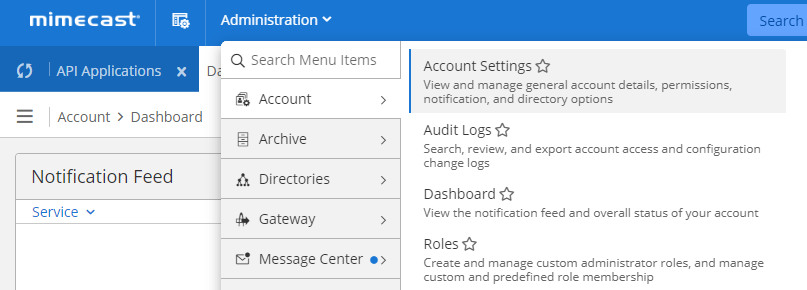
Open the Administration menu and go to Account → Account Settings.
Expand the Enhanced Logging section at the foot of the page and tick all three options (Enhanced inbound email logging, Enhanced outbound email logging and Enhanced internal email logging), then Save.
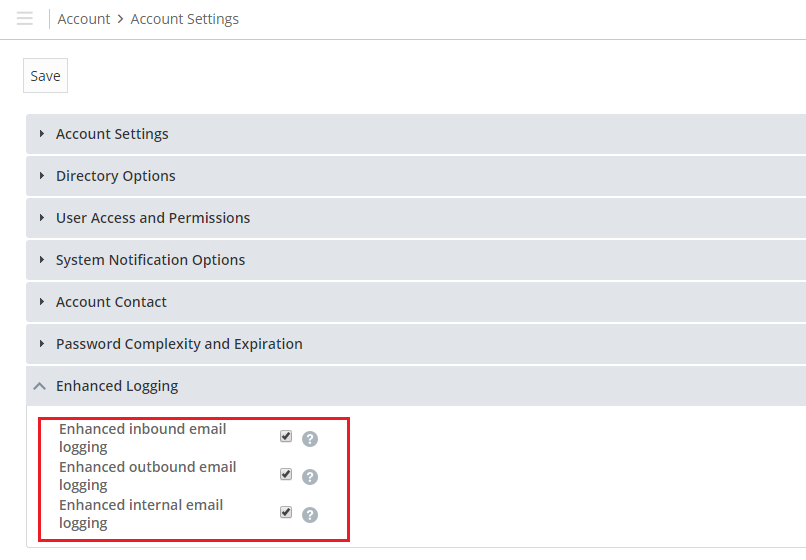
Leaving one unticked silently removes that direction of mail from the feed. Outbound and internal are the ones people skip, and they are what data-exfiltration and internal-phishing detections run on.
Mimecast begins logging when you save, and the logs become available to SIEM integrations about thirty minutes later. Nothing before that point exists to collect.
2. Create the role that scopes the application
Every API 2.0 application is bound to an administrator role, and that role, not the application, decides what the credential can read. Basic Administrator works and is what most integration guides use, but it is broader than this integration needs. To scope it properly, go to Administration → Account → Roles → New Role and grant read on just these:
| Permission | Why |
|---|---|
| Security Events and Data Retrieval → Threat and Security Events (SIEM) → Read | The SIEM feed itself. Without this nothing is readable. |
| Monitoring Menu → URL Protection → Read | URL Protect events. |
| Monitoring Menu → Attachment Protection → Read | Attachment Protect events. |
| Monitoring Menu → Impersonation Protection Logs → Read | Impersonation Protect events. |
| Gateway → Tracking → Read | Message tracking detail on the MTA events. |
Save the role. You will select it as the Application Role in the next step.
Fluency only reads from Mimecast. A role with All rather than Read on these menus gives the credential the ability to change gateway policy, which nothing in this integration needs.
3. Register the API 2.0 application
Mimecast is moving API 2.0 application management out of the old API and Platform Integrations page and into the Integrations Hub, which is where new applications are created. Existing applications stay manageable on the old page until Mimecast migrates them, after which the API 2.0 entries disappear from it altogether. Both paths open the same wizard.
- Integrations Hub (current)
- API and Platform Integrations (older consoles)
Go to Integrations → Integrations Hub, find the Mimecast API 2.0 tile and click Configure New.
If this is the first API application in the tenant, Mimecast shows the API Terms and Conditions first. Read them, tick I accept and click Next; the wizard will not continue until you do.
Go to Services → API and Platform Integrations (on some consoles the menu reads Integrations → API and Platform Integrations), open the Your API 2.0 Applications tab, and click Generate Keys on the Mimecast API 2.0 card.
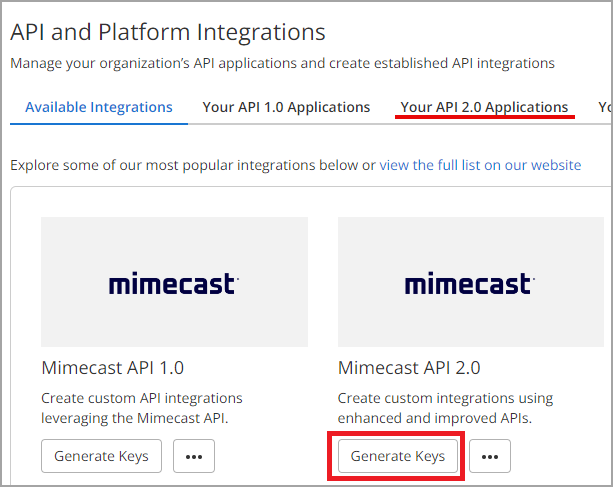
If the tab is not there, this console has already been migrated; use the Integrations Hub tab above.
The wizard runs Disclaimer → Details → Notifications → Summary. On the Details step:
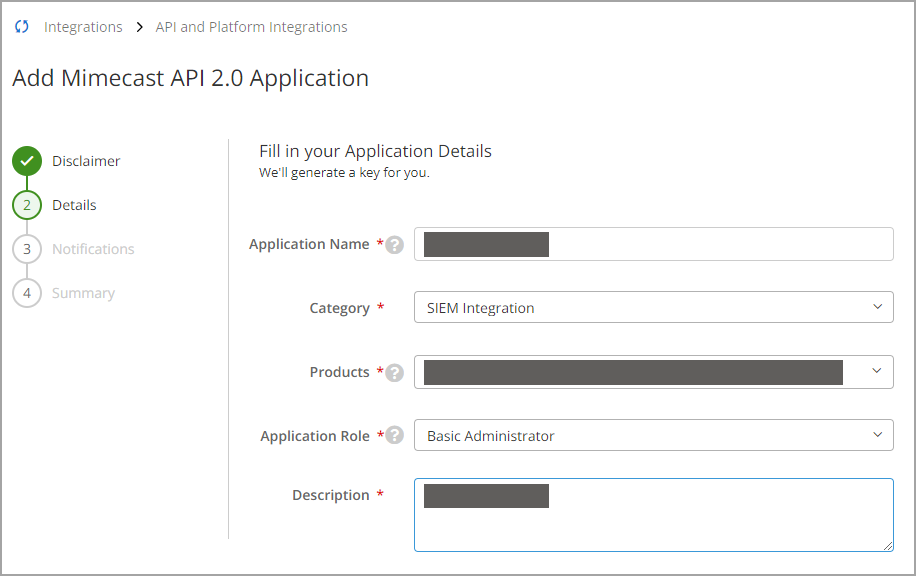
- Application Name:
ingext-mimecastis the name Fluency's own onboarding tooling uses, and is a good default. - Category: SIEM Integration.
- Products: the product set covering Cloud Gateway threat and security events. On most tenants this is listed as Threats, Security Events and Data for CG.
- Application Role: the role from step 2, or Basic Administrator.
- Description: free text, and the only field on this form you can change afterwards.
Fill in the Notifications step with a technical contact and an email address that will still be monitored in two years: this is where Mimecast writes if the application starts failing. Review the Summary and finish with Add and Generate Keys.
Both are fixed at creation. Picking the wrong product set means deleting the application and creating another one, which issues a new client ID and secret and means reinstalling on the Fluency side too. The product labels vary by account and bundle, so if nothing matches Threats, Security Events and Data for CG, pick the entry covering Cloud Gateway threat and security events rather than guessing, and confirm with Mimecast support before saving if it is ambiguous.
4. Copy the client ID and secret
The Manage API 2.0 Credentials dialog appears with both values masked behind an eye icon and a copy button.
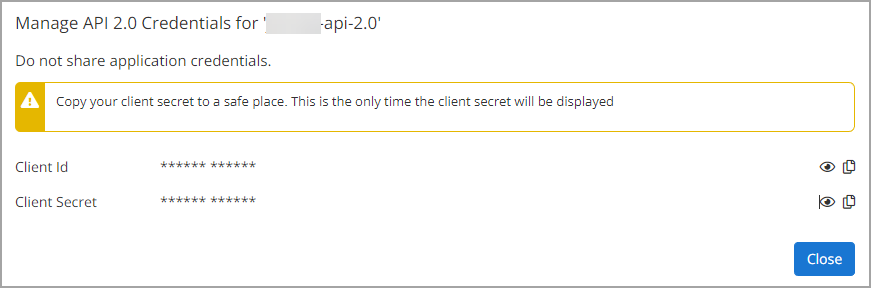
The client secret cannot be retrieved after this dialog closes. Losing it means Reset Keys → Regenerate on the application, which invalidates the pair you just created. Put it in a secrets manager, not a document, and do not keep it alongside the client ID.
| Value | Where it came from |
|---|---|
| Client ID | The credentials dialog, Client Id |
| Client Secret | The credentials dialog, Client Secret (shown once) |
Verify before you leave Mimecast
A freshly created application takes several minutes to become usable. Rather than discover that as an install failure in Fluency, exchange the credentials for a token yourself:
curl -s -X POST "https://api.services.mimecast.com/oauth/token" \
  -H "Content-Type: application/x-www-form-urlencoded" \
  -d "grant_type=client_credentials" \
  -d "client_id=<client ID>" \
  -d "client_secret=<client secret>"
| Response | What it means |
|---|---|
200 with an access_token field | The credential works. Continue to Part 2. |
401 immediately after creating the application | Almost always the activation delay. Wait a few minutes and repeat before treating it as a real failure. |
401 that persists | The client ID or secret is wrong: a truncated paste, or the secret from a different application. Re-copy, or Reset Keys → Regenerate. |
| A connection failure | Outbound HTTPS to api.services.mimecast.com is blocked from wherever you ran this. |
A token proves the credential, not the permissions. The Application Role and Enhanced Logging are only exercised when events are actually fetched, so a working token and an empty feed are consistent with each other (see Troubleshooting).
Part 2: Fluency
Install the Application
- v2 interface
- Classic v1 interface
In the navigation rail, open Applications and click Install Application, then choose Mimecast CG Events from the Email Audit and Protection category of the Application Catalog.
Go to Platform → Applications → Install Application From Template and choose Mimecast CG Events from the Email Audit and Protection category.
| Parameter | Notes |
|---|---|
| Client ID | From the credentials dialog in step 4. |
| Client Secret | The value shown once. Masked once the application is installed. |
| datalake | Pre-filled managed. |
| datalake index name | Pre-filled Mimecast. Two applications writing to the same index name in the same lake will collide, and the second one aborts. |
- v2 interface
- Classic v1 interface
datalake and datalake index name sit in the collapsed Advanced configuration section below Configuration; click its heading to reach them.
Leave Instance name and Display name at default / Default unless you are installing a second instance (collecting from two Mimecast tenants, for example), in which case give each one a name you will recognise on the applications list, and a distinct datalake index name.
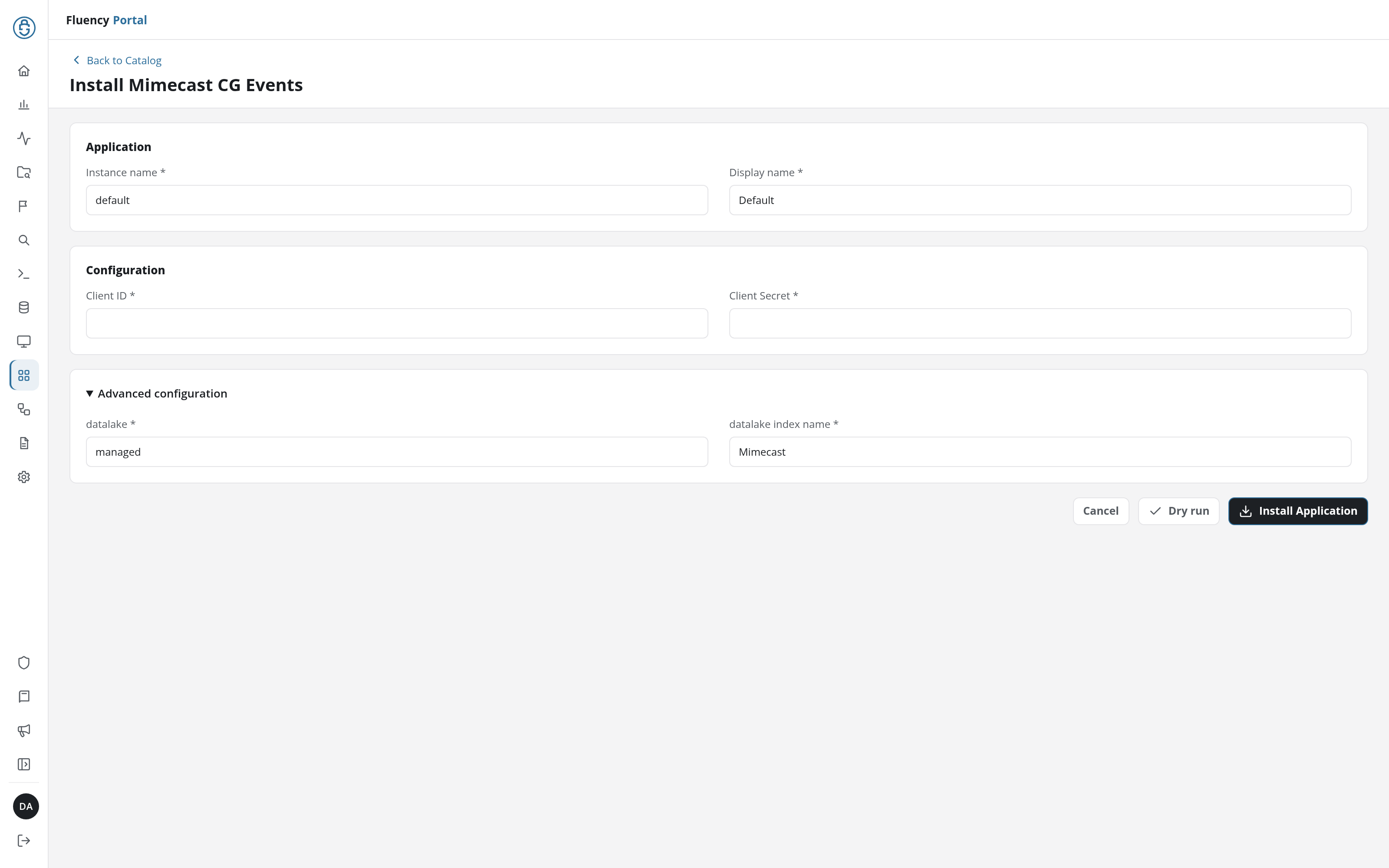
Click Dry run first to have the platform check the credentials before anything is installed, then click Install Application. The Applications page opens with the notice Default is launching., and the new application is listed with a green Running badge once the pipeline is up.
Leave Name and Display Name at default / Default unless you are installing a second instance (collecting from two Mimecast tenants, for example), in which case give each one a name you will recognise on the applications list, and a distinct datalake index name.
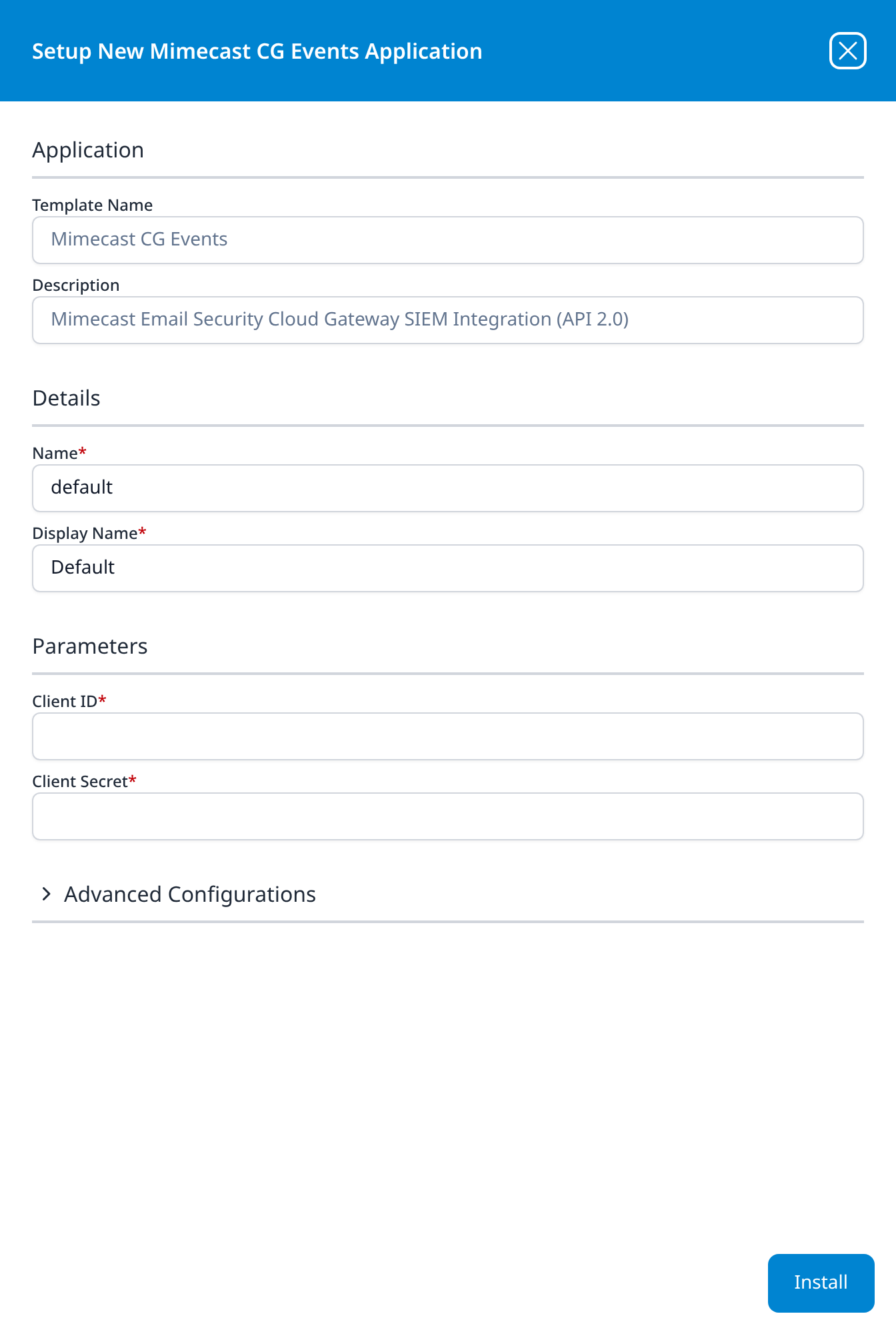
Press Install. The application then appears in the Installed Applications view, where its badge reads Running once the pipeline is up.
If you are moving off Mimecast Events (Legacy) and want to run both templates side by side for a period, give this one a datalake index name the legacy application is not already using. The second application to claim an index name aborts rather than merging into it.
Confirm it is running
- v2 interface
- Classic v1 interface
The application is listed on Applications as Mimecast CG Events, with the display name Default beneath it. Its badge should read Running in green within a few seconds; a red Error badge means the pipeline aborted or reported errors in the last hour, and the details page shows the error message beneath the summary figures.
Click its row to open the application details page. Parameters shows the values back with the client secret masked, and Actions lists, one line per object, the setup steps the install carried out, including the datalake index the events land in.
The application appears under Installed Applications as Mimecast CG Events: Default. Its badge should read Running in green within a few seconds; Aborted in red means the pipeline stopped on an error, and the details panel will carry the message.
The blue eye button on the card opens the details panel. Parameters shows the values back with the client secret masked, and Actions lists, one line per object, every pipeline object the install created, including the datalake index the events land in.
With normal mail flow, the first events should reach the lake within roughly 15 to 30 minutes. The few-minute activation delay on a brand-new API application sits inside that window, so an empty index at ten minutes is not yet a fault. Once data is arriving, the FACET selector on Datalake Search (v1: the Data Lake → Search facet selector) carries per-source configurations for the Mimecast streams (Default-Mimecast_MTA_Receipt, Default-Mimecast_URL_Protect, Default-Mimecast_Attachment_Protect and Default-Mimecast_Impersonation_Protect), which is a quick way to confirm which streams are actually populated. See Confirm data is arriving.
Maintenance
Rotating the client secret
Mimecast does not publish an expiry for API 2.0 client secrets, so rotation here is a policy exercise rather than a deadline. Regeneration is immediate and unforgiving; the old pair dies the moment the new one is issued, so plan for a short collection gap:
- In Mimecast, open the application (Integrations → Integrations Hub → Mimecast API 2.0 → View, or the Your API 2.0 Applications tab on an older console) and choose Reset Keys → Regenerate.
- Copy the new Client Id and Client Secret from the dialog. This is again the only time the secret is shown.
- In Fluency, uninstall the Mimecast CG Events application and install it again with the new pair. Template parameters are read-only after install, so reinstalling is the supported way to change a credential. To uninstall, click Uninstall at the top right of the application's details page (v1: the red Uninstall button at the foot of its details panel on Platform → Applications).
Because Mimecast serves seven days of SIEM logs, a rotation completed inside that window backfills rather than losing events.
Removing the integration
Uninstall the application in Fluency first, with the Uninstall button at the top right of its details page (v1: the red Uninstall button at the foot of its details panel on Platform → Applications), so the pipeline stops cleanly before its credentials stop working. Then delete the API application in Mimecast, which revokes the credential outright.
Enhanced Logging can be left on; it is an account-wide setting that other integrations and Mimecast's own tracking views also depend on.
Troubleshooting
| Symptom | Likely cause | Fix |
|---|---|---|
| The application shows Error (v1: Aborted) immediately after install | Wrong or truncated client ID/secret, or the application was created minutes ago and has not activated | Wait a few minutes and reinstall. If it still fails, exchange the credentials for a token by hand (Verify before you leave Mimecast). |
| Running, but the index stays empty | Enhanced Logging is off, or was switched on less than half an hour ago | Administration → Account → Account Settings → Enhanced Logging; tick all three, save, wait thirty minutes. Nothing before that point exists to collect. |
| MTA events arrive but no URL/Attachment/Impersonation events | Either the role lacks the Monitoring Menu read permissions, or the tenant has no Targeted Threat Protection subscription | Check the application's Application Role first; if the permissions are there, confirm the subscription in the Mimecast console. |
| Inbound mail is logged, internal is not | Only Enhanced inbound email logging was ticked | Tick outbound and internal as well. |
| Install aborts with an index collision | Another application already owns the datalake index name, commonly a second Mimecast instance | Reinstall with a distinct index name. |
| Collection worked, then stopped | The application was deleted, or its keys were reset in the console | Check the application still exists in the Integrations Hub, then reinstall in Fluency with the current pair. |
| Everything is configured and the token request itself fails | The client secret was regenerated, or the application was bound to a role that has since been deleted | Reset Keys → Regenerate, confirm the Application Role still resolves, and reinstall. |
Data reference
What each SIEM event type records, and what Mimecast needs in place to produce it.
Event types and what each depends on
Mimecast's SIEM endpoint exposes ten event types. The MTA types describe the life of a message through the gateway; the Targeted Threat Protection types describe what Mimecast's inspection services found.
| Stream | What it records | Depends on |
|---|---|---|
| Receipt | The MTA accepting a connection for a message: sender, recipient, sending IP, subject, initial verdict. | Enhanced Logging |
| Process | Mimecast policy evaluation of that message: which policies matched and what they decided. | Enhanced Logging |
| Delivery | The MTA handing the message to its destination, or failing to. | Enhanced Logging |
| Journal | Journaled copies of internal mail. | Enhanced Logging (internal) |
| AV / Spam | Malware and spam verdicts raised during processing. | Enhanced Logging |
| URL Protect | Rewritten-link click verdicts: who clicked what, and whether it was blocked. | Targeted Threat Protection: URL Protect |
| Attachment Protect | Attachment sandboxing and safe-file conversion outcomes. | Targeted Threat Protection: Attachment Protect |
| Impersonation Protect | Display-name, domain-similarity and internal-name impersonation hits. | Targeted Threat Protection: Impersonation Protect |
| Internal Email Protect | Threats found in internal and outbound mail. | Internal Email Protect |
The MTA types are the volume; the Targeted Threat Protection types are the detections. A tenant without a Targeted Threat Protection subscription still gets receipt, process and delivery: the integration installs and runs, it simply has fewer streams to carry.
Under the hood
Engineering reference: API 2.0 endpoints, batching and rate limits
This section describes the Mimecast API mechanics any CG SIEM collector has to work within. Administrators connecting Mimecast do not need it.
One global gateway, no regional base URL. API 2.0 is served from https://api.services.mimecast.com, which routes to the tenant's own region. This is the visible difference from API 1.0, where the base URL was regional (https://us-api.mimecast.com, https://eu-api.mimecast.com and so on) and had to be collected alongside the four keys, and it is why the CG template has two parameters where the legacy template has five.
Authentication is OAuth 2.0 client credentials:
POST https://api.services.mimecast.com/oauth/token
grant_type=client_credentials&client_id=…&client_secret=…
The response carries a short-lived bearer token that is presented as Authorization: Bearer … on subsequent calls and re-requested from the same endpoint on expiry. There is no refresh token.
Two SIEM shapes. Mimecast exposes the same events two ways:
| Batch | Stream | |
|---|---|---|
| Endpoint | /siem/v1/batch/events/cg | The streaming SIEM endpoint on the same host |
| Returns | A pre-signed URL per batch file | Events inline, paged |
| Page size | Whole batch files | 100 events per call |
| Call budget | Suited to full-fidelity collection | 300 calls/hour |
The batch endpoint is the one to build on for full collection: it hands back pre-signed URLs to compressed newline-delimited JSON, one file per event type, instead of paging 100 events at a time. Filtering is by event type only; omitting the type returns all ten.
Rate limiting is per application. Responses carry X-RateLimit-Limit and X-RateLimit-Remaining, and a breach returns 429 with Retry-After in milliseconds. A collector that ignores Retry-After and retries immediately will lose events, because the seven-day retention window does not pause while it backs off.
Retention is about seven days of SIEM logs. Combined with the thirty-minute lag between Enhanced Logging being saved and data appearing, this sets the practical bounds on any catch-up: an outage under a week backfills, an outage over a week does not.
References
Mimecast
- Managing API 2.0 for Cloud Gateway: the canonical application-creation walkthrough, also published as Managing API 2.0 for Email Security - MX
- The Integrations Hub for Cloud Gateway: the Hub the console is moving to
- Application Management, Jan 2026: the 29 January 2026 move of API 2.0 management into the Hub
- Manage API 2.0 Credentials, Sep 2023: why the client secret cannot be retrieved after creation
- Mimecast API 2.0, Jun 2023: API 2.0 general availability and the OAuth model
- SIEM API Endpoints, Jul 2023: batch versus stream, and the stream call budget
- SIEM guidelines and API overview: the developer portal reference
Fluency
- Mimecast (Legacy API 1.0): the API 1.0 template and how to migrate off it
- Mimecast CG Events install form: the template's fields and defaults (v1: Install Application From Template)
- Confirm data is arriving
- Email Security integrations: the rest of this category