Ingress Management
Once data is flowing, ingress management is the ongoing job of knowing what is sending, what stopped sending, and what it costs. This page covers the asset/ingress inventory rather than the initial connection of a source.
The asset inventory
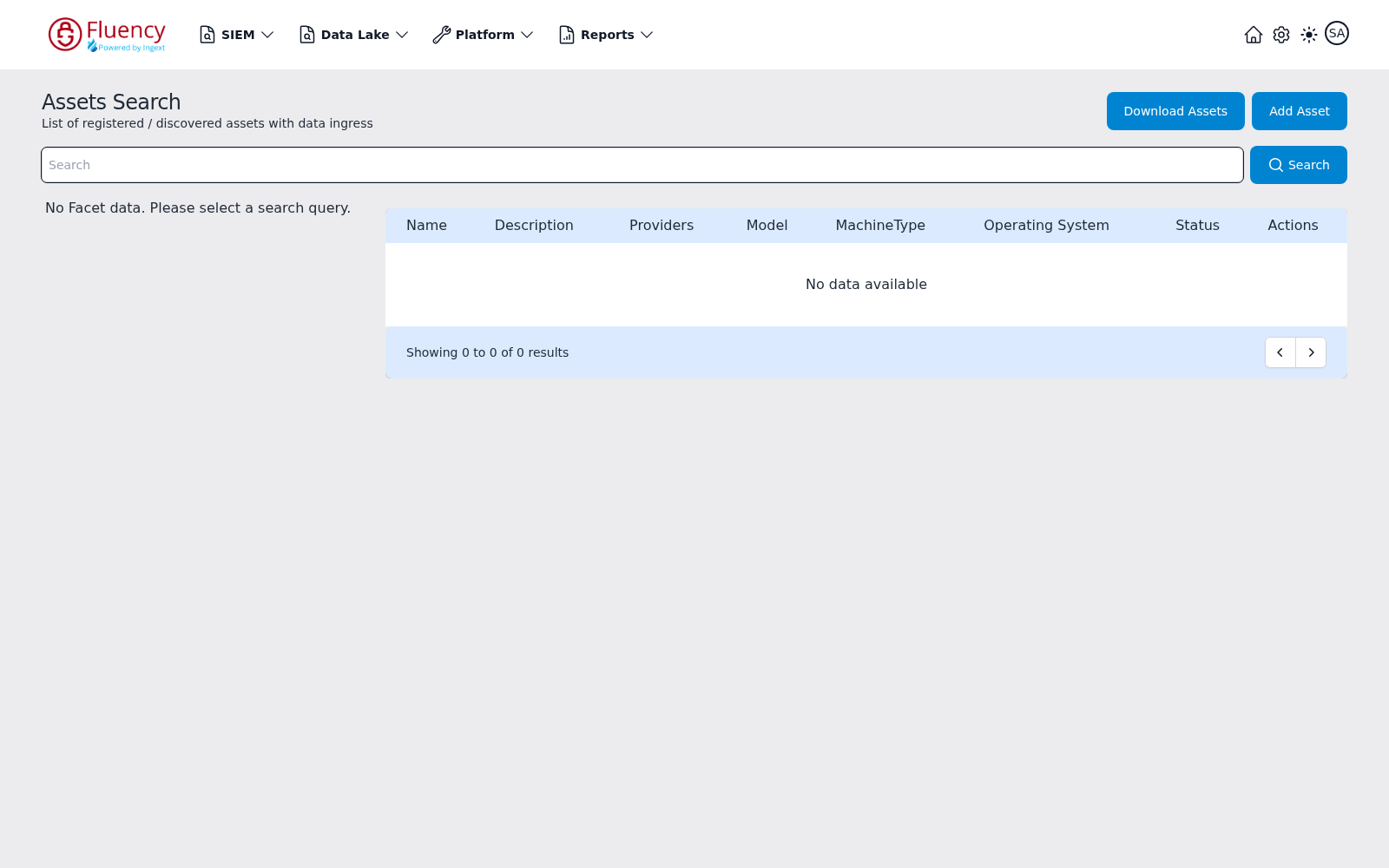
The inventory lives on Platform → Assets → Assets Search (URL path /platform/assets), subtitled List of registered / discovered assets with data ingress. A full-width Search field spans the page, with a facet panel on the left and the results table on the right; Download Assets and Add Asset sit in the header. The results table has Name, Description, Providers, Model, MachineType, Operating System, Status, and Actions columns.
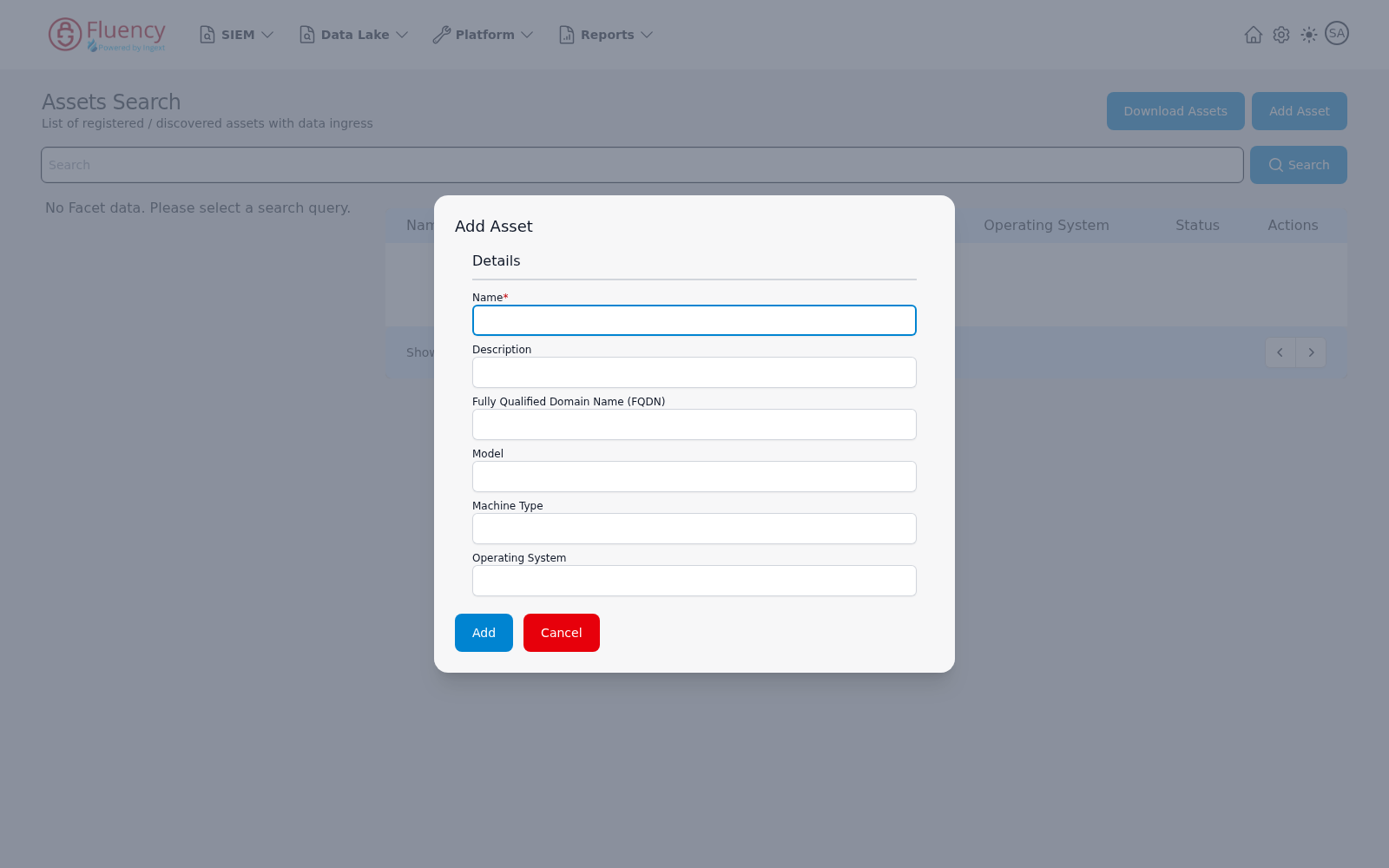
Add Asset registers one by hand. Its single Details section takes Name (required), Description, Fully Qualified Domain Name (FQDN), Model, Machine Type, and Operating System — click Add to save.
Detecting a source that stopped
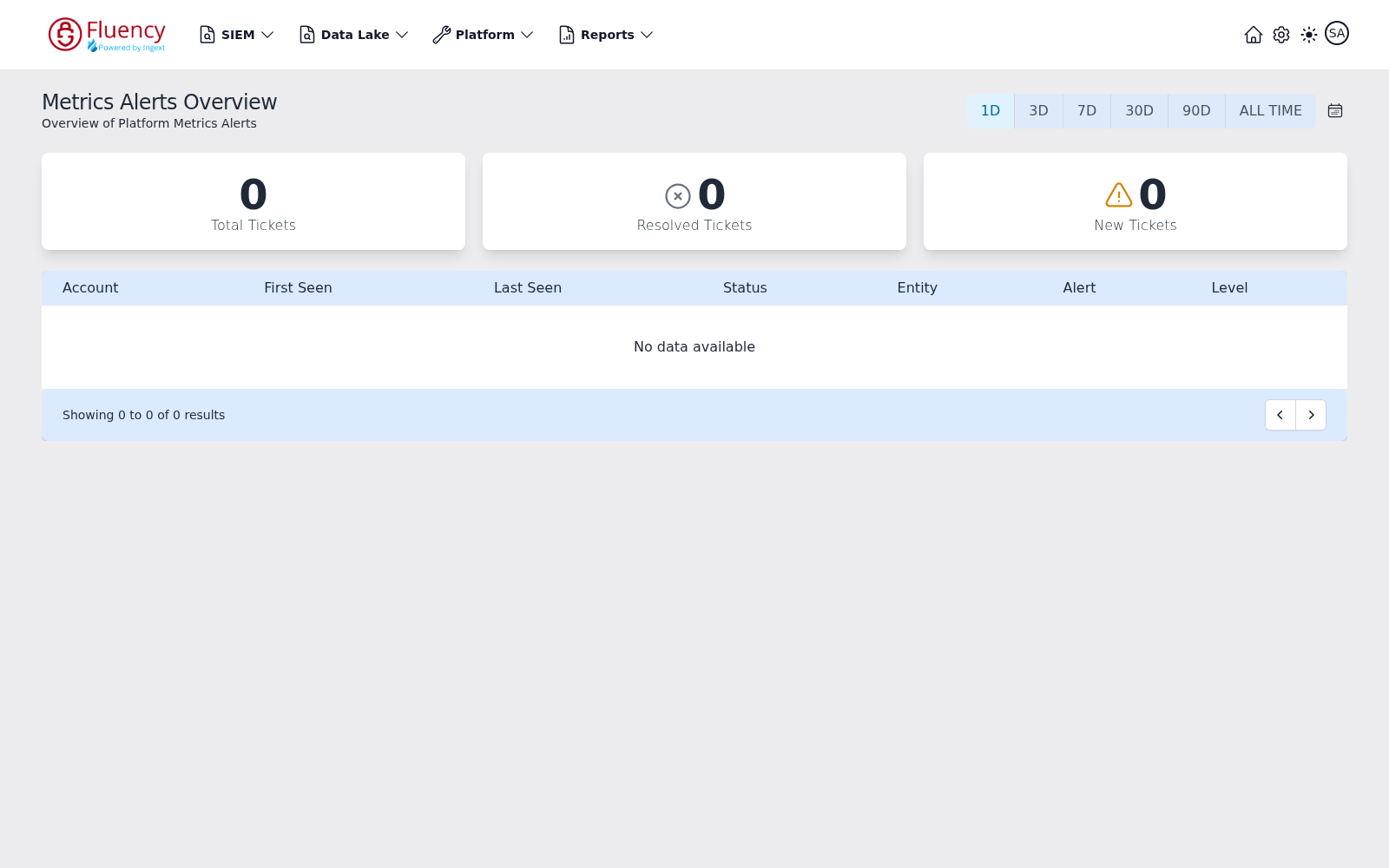
Silence is the failure mode a SIEM is least likely to alert on by itself. Where a metric alert is configured to raise a ticket for it, that ticket surfaces on Platform → Assets → Metrics Alerts (URL path /platform/metrics/overview), titled Metrics Alerts Overview. A time-range selector at the top right offers 1D (the default), 3D, 7D, 30D, 90D, and ALL TIME, plus a calendar button for a custom range. Three summary cards report Total Tickets, Resolved Tickets, and New Tickets for that range, and the table below lists one row per alert ticket with Account, First Seen, Last Seen, Status, Entity, Alert, and Level columns.
Onboarding and decommissioning
Onboarding is normally installing an application template — see Integrations — and decommissioning is uninstalling it from the application's details panel.
Backfilling from an S3 bucket
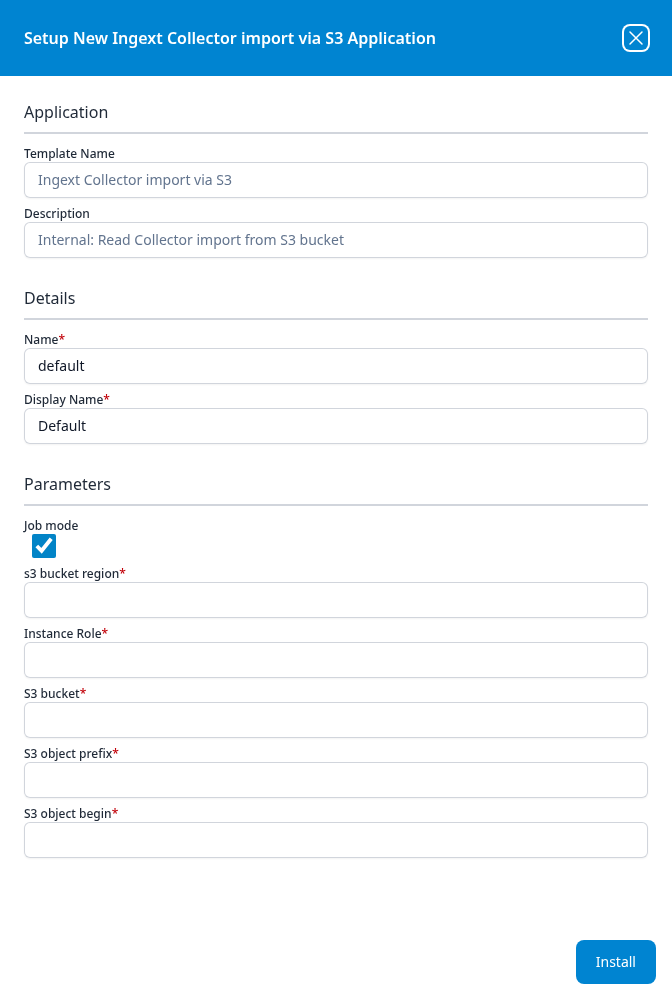
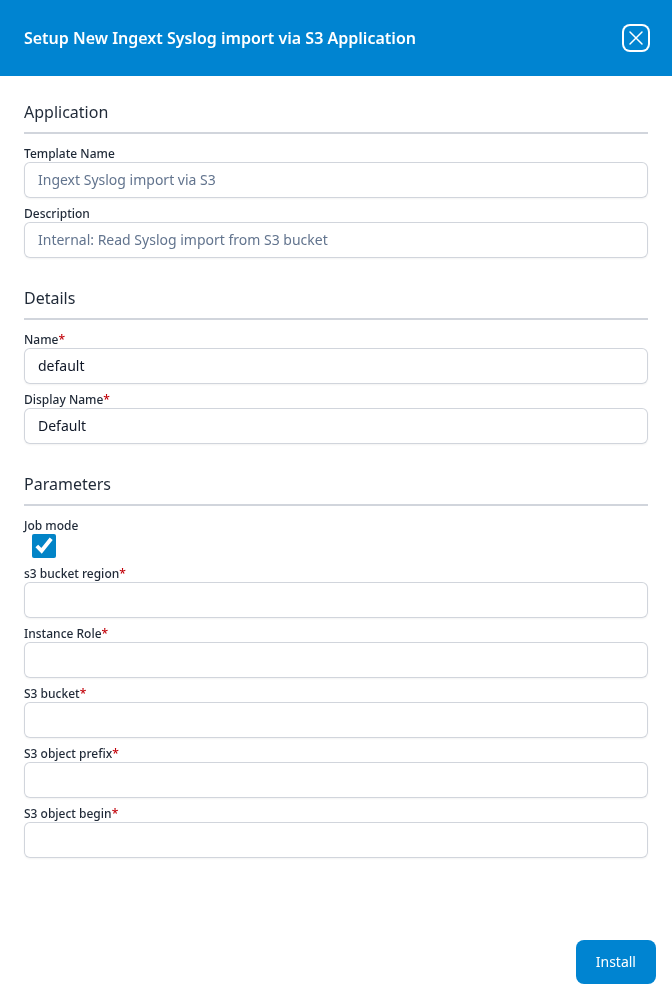
Two System Components templates replay archived data rather than collecting it live: Ingext Collector import via S3 and Ingext Syslog import via S3. Both take the same six parameters — a Job mode checkbox (ticked by default), s3 bucket region, Instance Role, S3 bucket, S3 object prefix, and S3 object begin — and differ only in what they expect to find in the bucket.