Defining the Query
The interface steps on this page use controls from the legacy interface that are not present in the current one (see Page Functionality): the QUERY BUILDER tab on Events Search and the EventWatch Rules page. In the current interface, event searching is Datalake Search (v1: Data Lake → Search) and behavior rules are managed from Configuration → Behavior Rules (v1: SIEM → Behavior Rules), in the Create Rule wizard's Selection Criteria step. The query concepts and the search/where command reference below apply to the current interface as well.
- v2 interface
- Classic v1 interface
In the current interface an interactive query is typed into the search box on Datalake Search, with the Data lake index selector to its left and the time-range buttons and Search to its right. The query, the selected index, and the time range together define what the search returns.
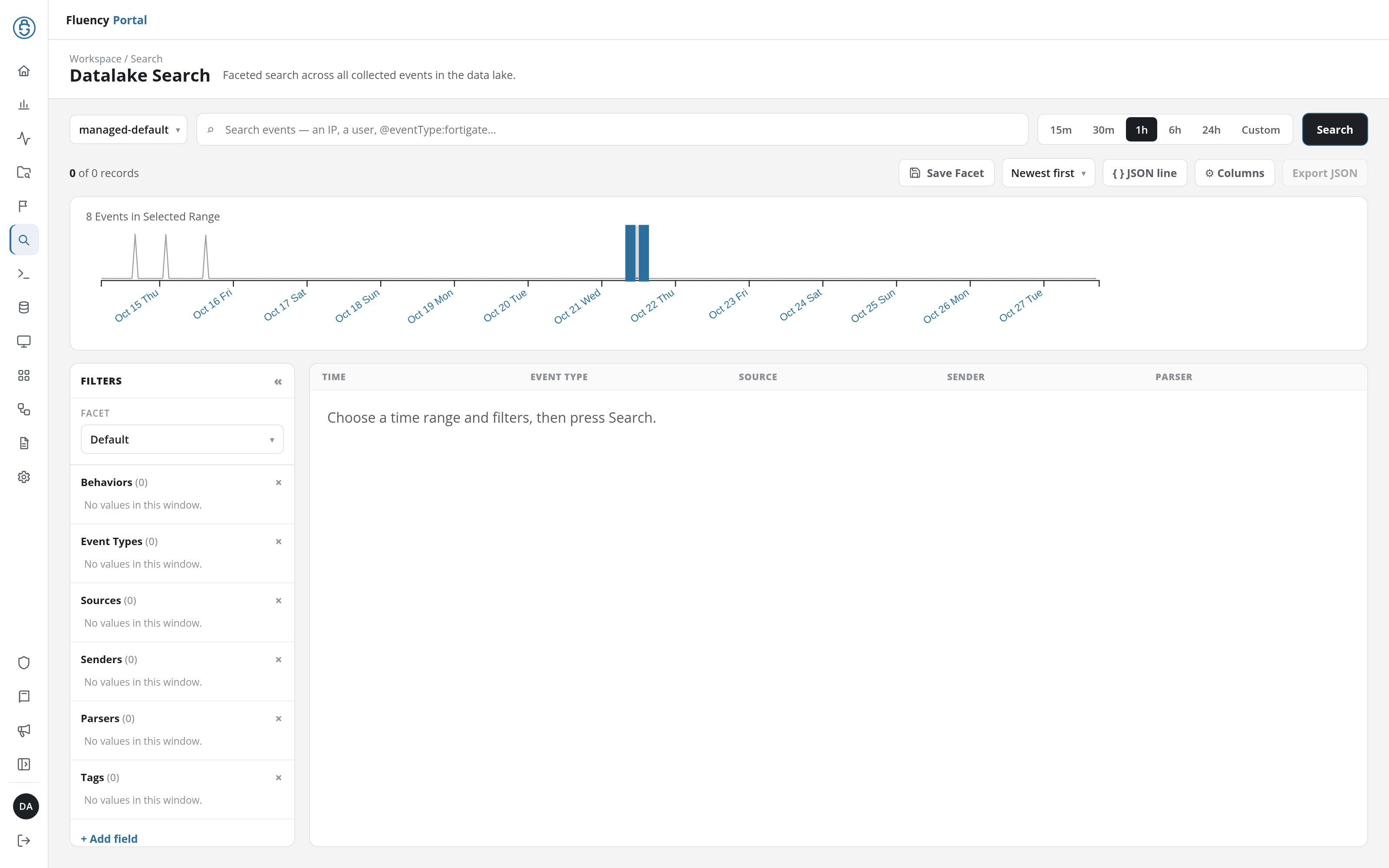
The search box takes a bare value, matched anywhere in the event, or a @field:value term that matches one field. Running a search puts its time range and index into the page's URL (/v2/events?from=…&to=…&index=…), so the address of a results page opens the same search again.
In the current interface an interactive query is typed into the Search field of the search bar on Data Lake → Search, with the index selector to its left and the Search button and Sort By menu to its right. The query, the selected index, and the time range together define what the search returns.
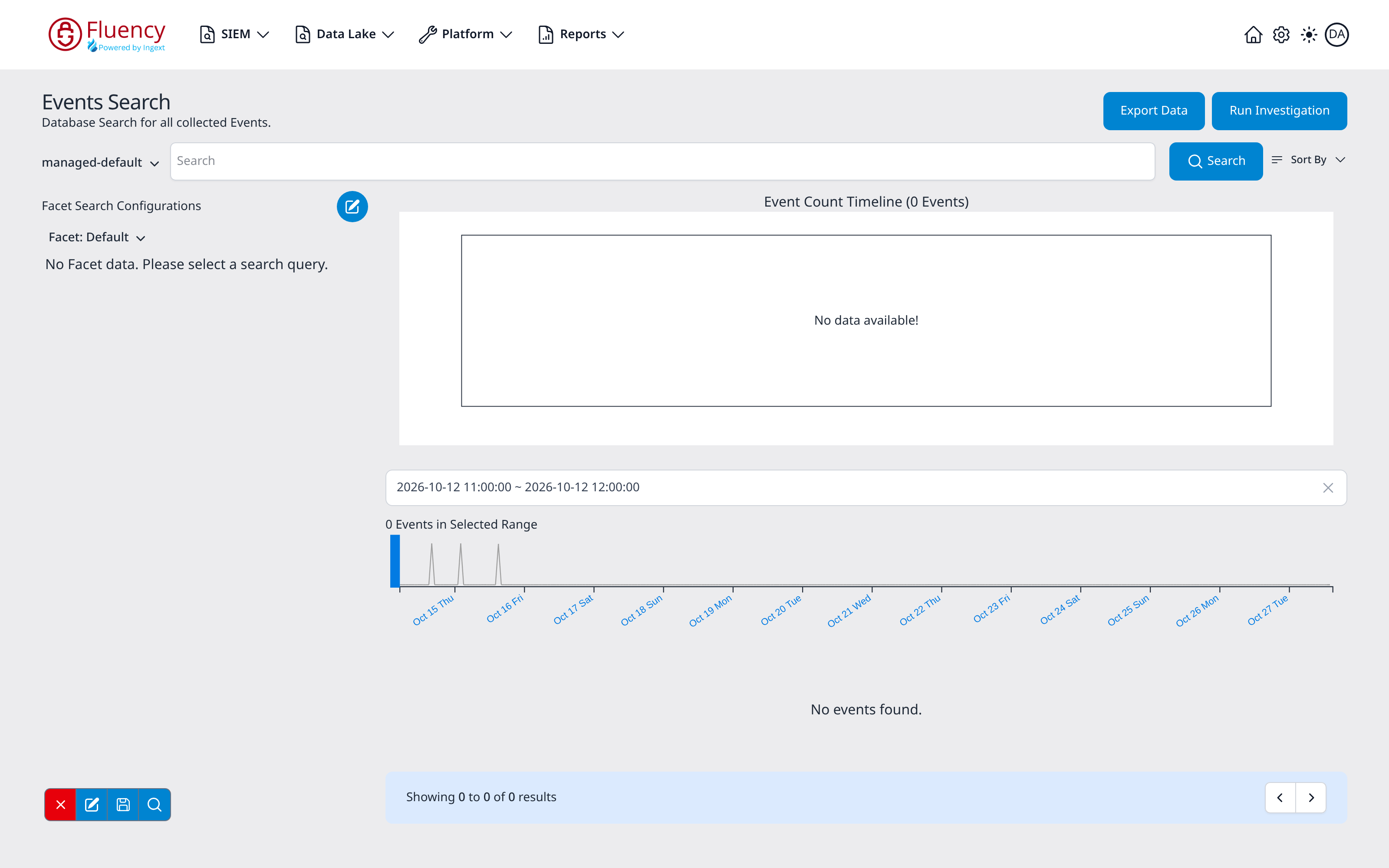
Running a search navigates to a URL that records the whole search: the query (q), the time window (from, to), the filter terms (must, not), and the index (index), so a query built in the interface can be bookmarked or shared.
Queries
The timeframe alone selects a dataset; a query selects the data more precisely. There are four ways to select data in the system:
- Lucene Query
- Facet Filters
- Query Tree
searchandwherecommands
When using Fluency, you can leverage both the timeframe and search capabilities through the interface to create the dataset. To do this, search using the search bar, facet, or query builder and then switch to the code tab. The code will use the current search as the search for the code.
However, a search can also be expressed as options to the search and where commands. The difference between the two is that the search command processes the data in the Map-Reduce database framework, while the where command acts as a filter to an established table.
When choosing between the two commands, always choose the search for faster results.
Search Expressions
Search expression can occur after either a search or where command.
search { from="-7d<d", to=">d" } sContent("@behaviors","O365_User_Added")
The search command can also have a function added to that enhances the query. Besides the timeframe’s from and to attributes, search expressions also refer to fields (key) and value. The term field refers to a dot notation of the field name. While, value refers to the contents stored value.
In a JSON object of:
{
  wheels: 4,
  color: `blue`,
  interfaces: {
  	steeringWheel: true,
	pedals: [`clutch`, `accelerate`, `brake`]
  }
}
A field could be: wheels, color, interfaces.steeringWheel, or interfaces.pedals.
While values could be: 4, blue, clutch or true.
The built-in search expressions are:
- sContent(field, value): Returns true when the value is stored in the field.
- sContains(field, value): Returns true when the value is a substring of the field.
- sStartswith(field, value): Returns true when the substring is the starting sequence of the field.
- sEndswith(field, value): Returns true when the substring is the ending sequence of the field.
- sRange(field, from, to): Used for when there is an explicit field that is a timestamp. In this case, the field will be tested to see if the value is in the range of
fromtoto. - sRegexp(field, field, value).
- sEntityinfo(entityinfo, field, value).
- sIsnull(field): Tests to see if the field’s value is set to null.
- sWildcard(field): Tests to see if there is a value related to a field.
where command allows the search expression to be placed on a separate line. This is a post search filter. Here you are using a handy nomenclature for the f() function. The f() function is returning an Object. To the left of the assignment multiple children attributes are referred too, while at the same time being named. The attribute accountName as a child attribute of "@sentinelOneAgent" is being assigned the handle of account.
search {from="<d", to=">m", type="resource"} sContent("@dayIndex","20220511-16")
let {account="accountName", computer="computerName"} = f("@sentinelOneAgent")
let {group="groupName", machineType, modelName} = f("@sentinelOneAgent")
where sContent(account, "Fluency Security - Reseller Account")
The advantage of a where command is that you can first assign handles to the field names that are simpler and easier to understand as they will match the column names of the result table. Then use that handle to refer to is in the search expression. When doing it this way, the handler does not have quotes around it. Looking at the example above, notice that account is assigned the field name of "@sentinelOneAgent.account". Then this handle is used as the field in the sContent search expression.
Where commands can be chained together to create complex searches while maintaining readability. But as noted at the very beginning of this section, it is always preferred to use the search command over using the where command.
Query Tree: Fluency LavaDB (LVDB) Query Trees
Fluency has another method of building queries for both the Events Search and the Behavior Rules pages. Lucene queries and regular expressions are limited in some cases; a query tree allows more complex queries to be used.
Structure
The query tree structure is built using an ordering similar to reverse polish notation. As such, queries are built downward with Booleans coming before individual operations. Here is a somewhat complex example of an LVDB Query taken from a SIGMA rule that was imported for detecting mimikatz:
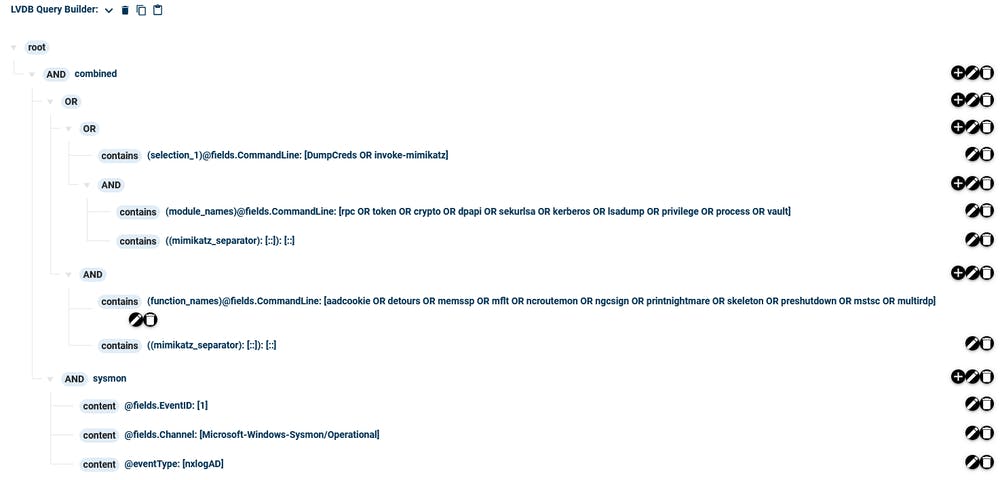
First, notice that the query begins with a root element at the top. All other elements branch off of this root.

After the root, typically, there are one or more Boolean operations. These Boolean operations are essential to building complex queries as they ties the leaf elements together. While technically a query can consist of just a single leaf element, that is typically not the case. Cases where a single leaf can be used may suffice just as well being a Lucene or Regular Expression query. Each Boolean operates on all of its child nodes. If there will be multiple top-level conditions (for complex queries), then there will most likely be nested Booleans. See below for groups of Booleans and their children (colored circles).
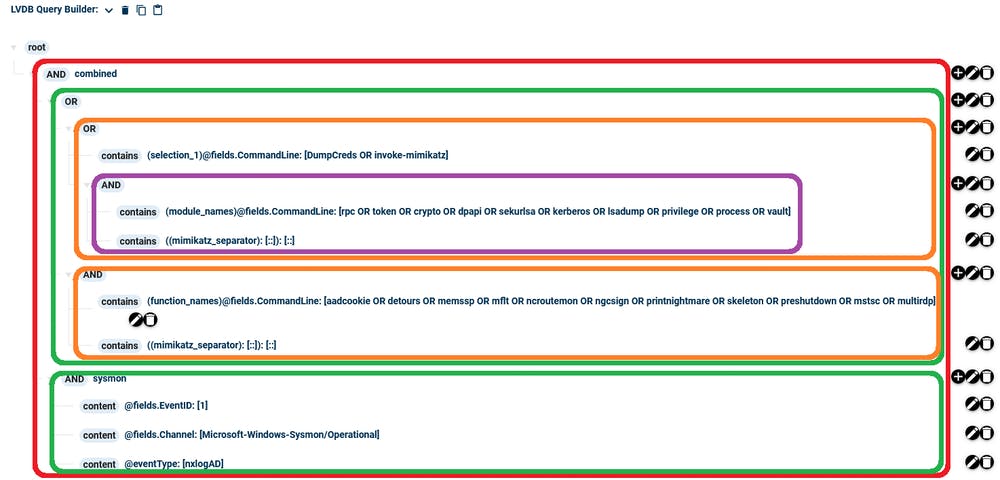
Each color represents a nested level from the root to the innermost query. In this manner complex queries can combine booleans AND/OR.
Build the tree in Events Search
To build a query, it is recommended that this be done initially in Events Search in order to verify the results being sought prior to finalizing in EventWatch.
Sign in to your Fluency portal at https://<companyname>.app.ingext.io; see Fluency Web Interface for the URL formats.
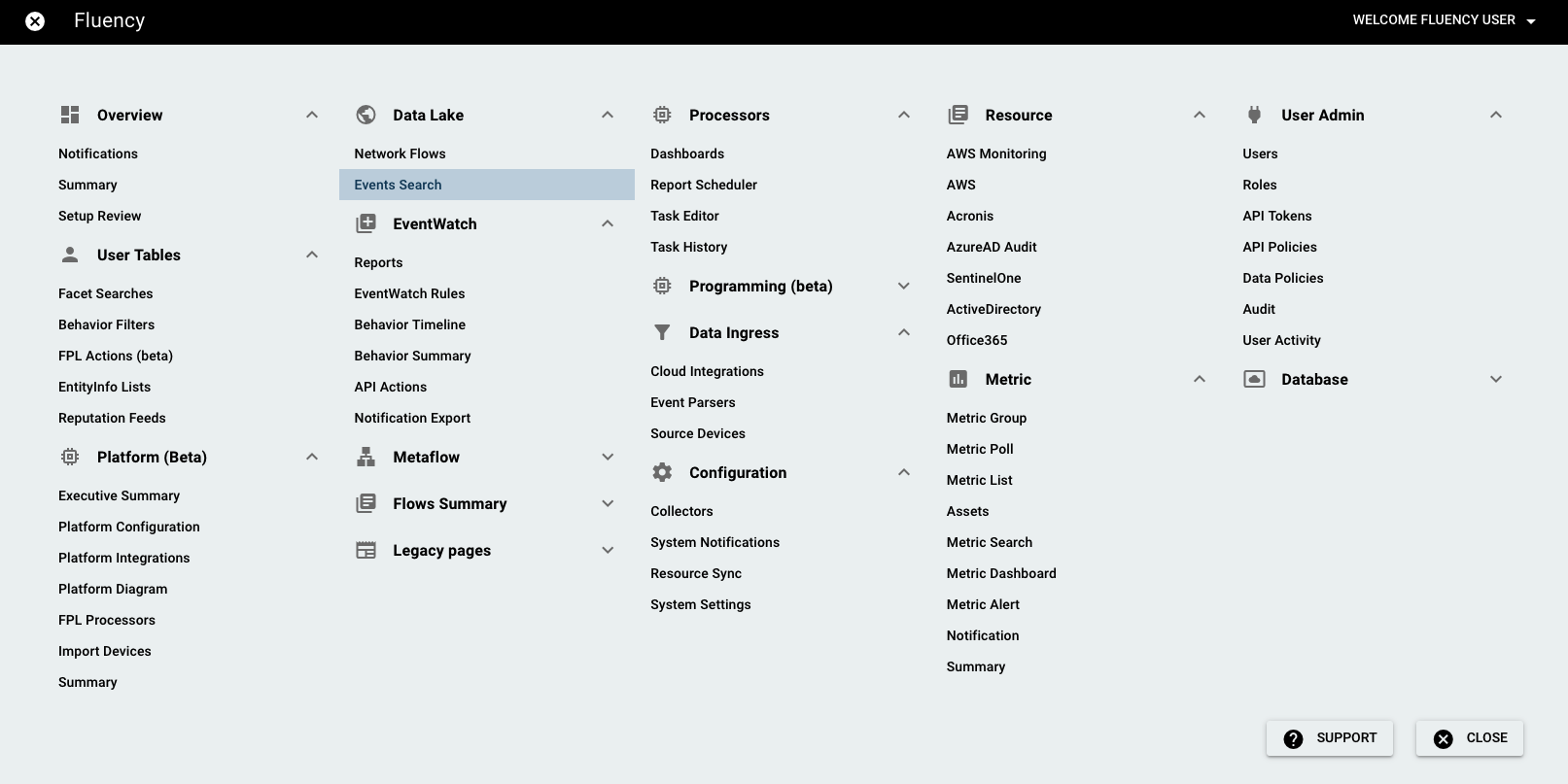
Choose the Search option under the Data Lake menu.
Switch to the "QUERY BUILDER" tab.
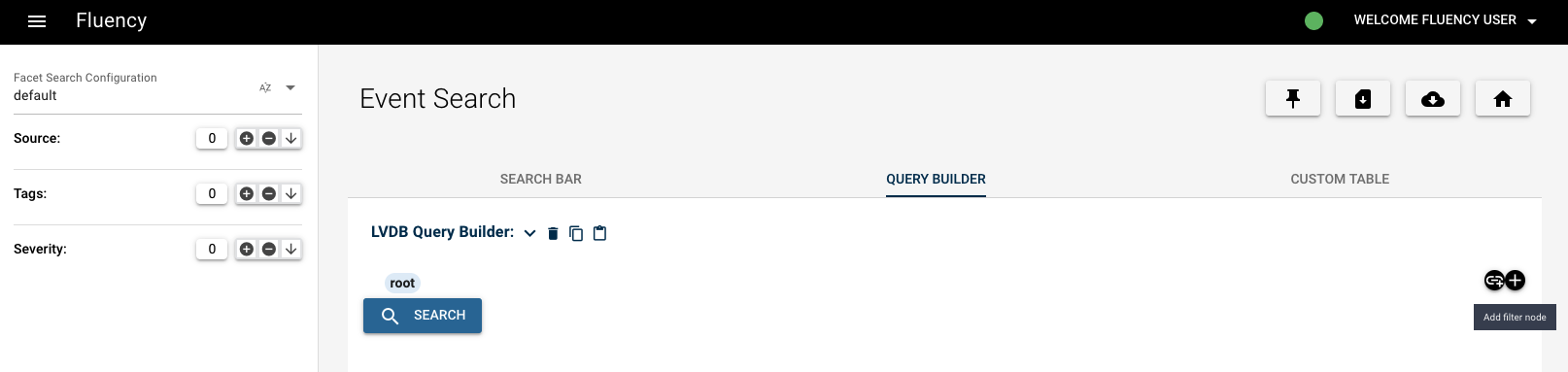
The three buttons on the top left of the query builder are Delete, Copy, and Paste. These are useful for starting over, pasting in an already created query (such as from EventWatch) or copying the query to be saved/used elsewhere (such as creating an EventWatch behavior). The root element will also be shown with no children. To add a child element, press the "+" button to the right of the root node.
This will provide a dialog for adding a query filter.
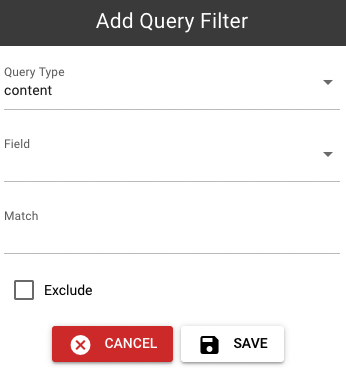
In most cases, at the root, this will typically be a Boolean so that more query filters can be added.
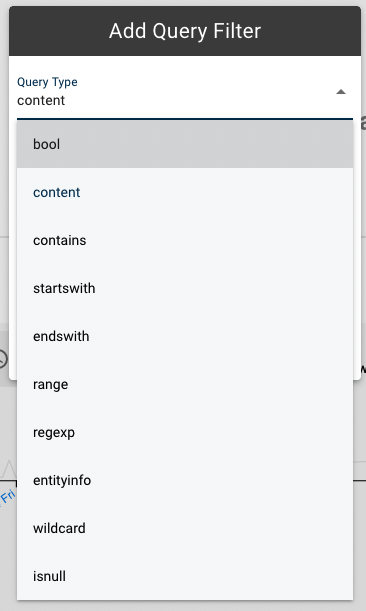
Once the Boolean is added, the tree will be updated with it as the new child of root. Click "SAVE" to save it.
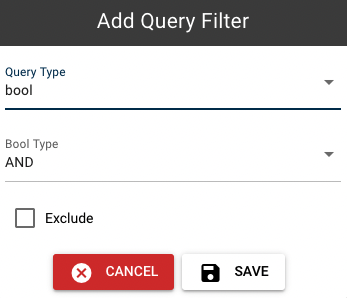
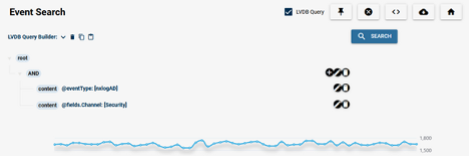
At this point, it becomes a matter of continuing to build the query out either by adding more Booleans to adding the combination of leaf filters needed to provide the results being sought. Once this has been completed, set the time frame and click search. If the desired results are shown then the query may be complete. Otherwise, make changes as needed and re-test until the desired results are shown.
Copy the Query to a new Behavior (EventWatch)
Once the query has been built and tested, use the "Copy" button from the Query Builder to make a copy of the completed query.
- v2 interface
- Classic v1 interface
Open Configuration → Behavior Rules if the intent is to build a behavior from this query, and create a new behavior as normal (click + Create Rule at the top right).
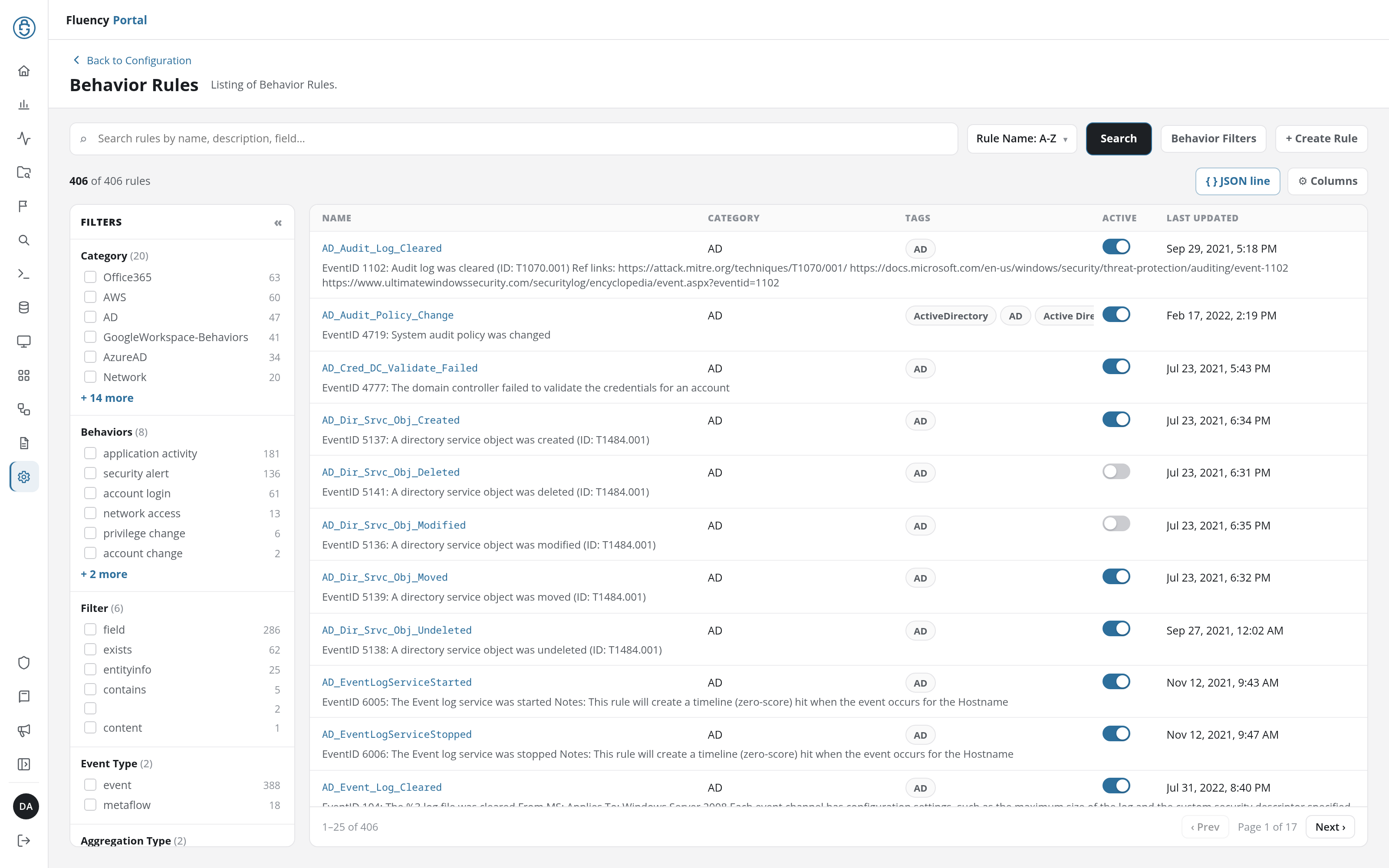
On the Selection Criteria step, tick the LVDB Query checkbox. The LVDB query builder appears in its place, starting from a root node: + Add beside a node adds a child element, and Edit changes one. Build the tested tree here, element by element.
Switch to the Behavior Rules page (SIEM → Behavior Rules) if the intent is to build a behavior from this query.
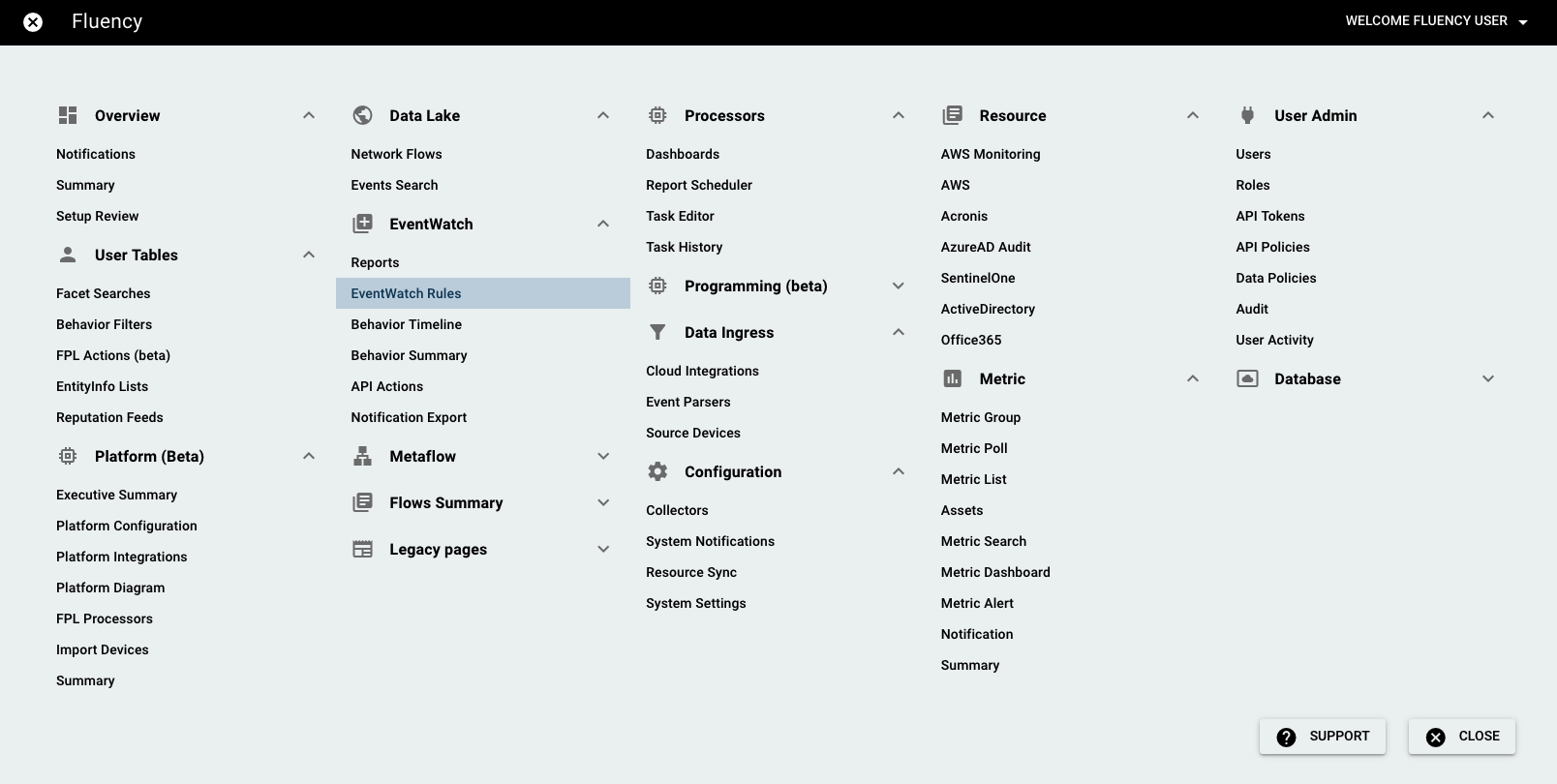
Create a new behavior as normal (click Create Rule at the top right).
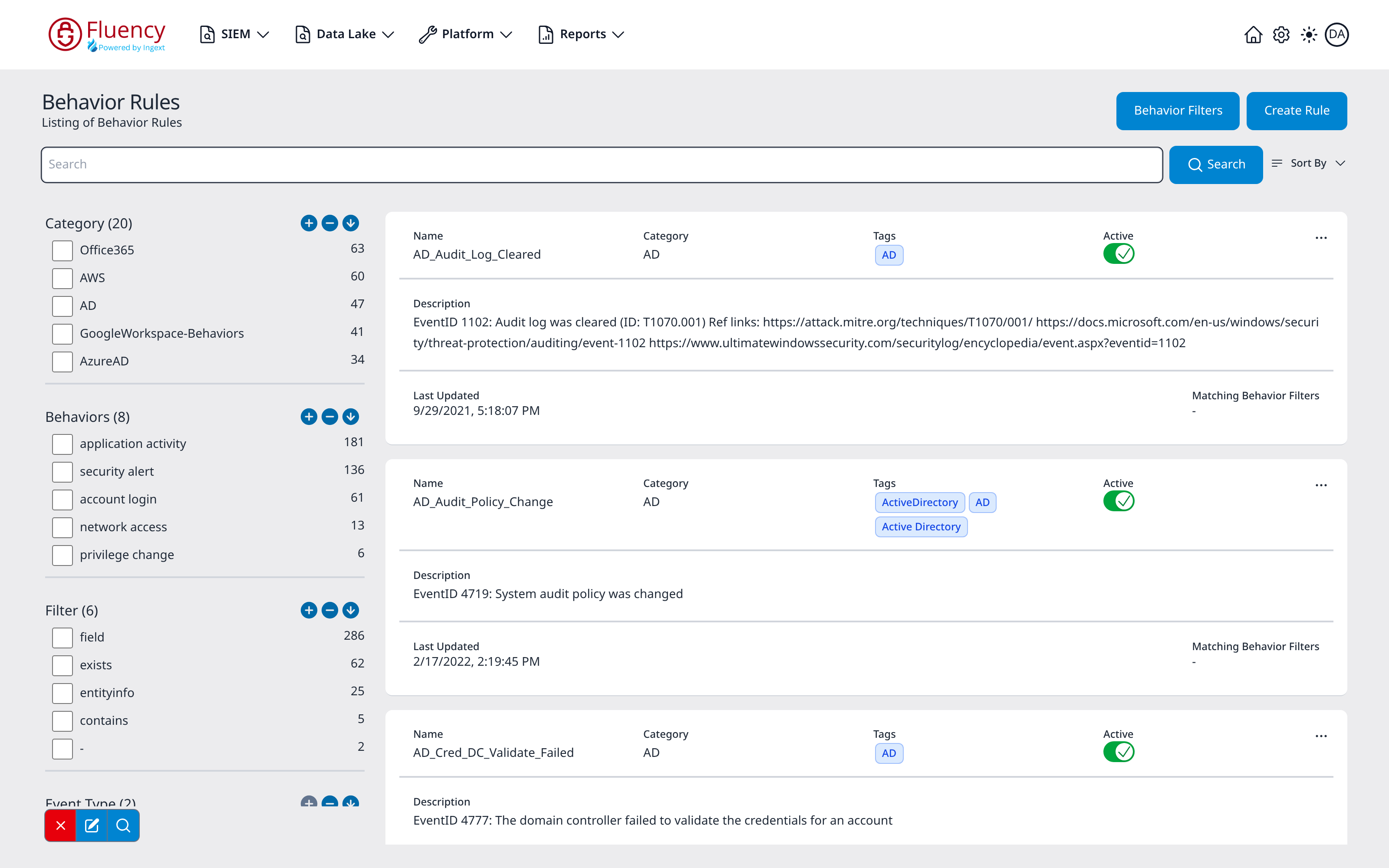
The only difference now is the need to paste the LVDB query into the behavior as it is built. Look for the LVDB Query checkbox under "Selection Criteria", and check it. The same three buttons should be shown as were shown on the Events Search page. In this case, click the "Paste from Clipboard" button to open the past dialog box. Past the text (currently in the clipboard) into the dialog box and click "SAVE".
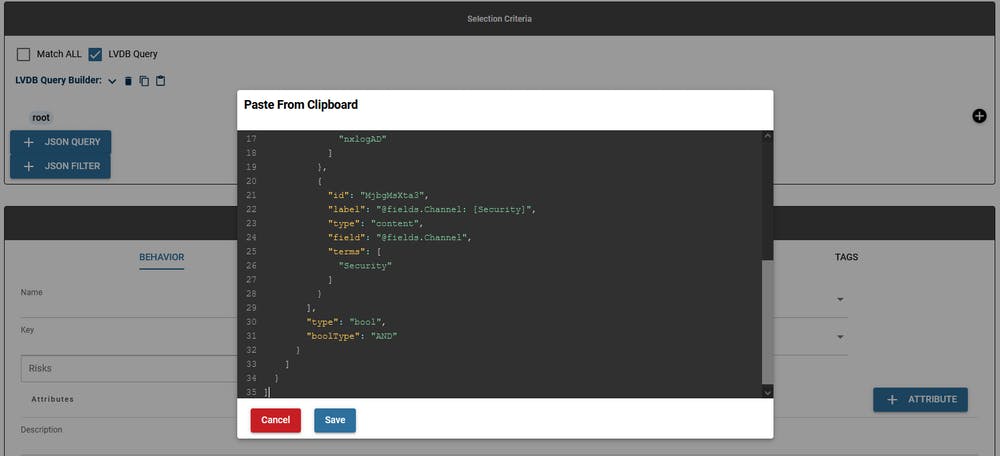
Now, after verifying that the LVDB Query tree is in the new behavior dialog and correct, complete the rest of the behavior as needed.
Summary
These are the basics of the LVDB Query feature: a starting point for testing different creations and complex queries. It may seem daunting at first, but with practice, it will become almost second nature for most analysts in creating complex queries for their searches and custom behaviors.
Appendix - Query Filter Options
If you use the query builder enough, you will find that the terms map almost exaclty into the processing language functions. Here is a list of the type of matches and their meaning:
bool
- This can be the boolean AND or OR an operates upon leaf elements below this node, including other booleans. This is the only non-leaf element in the tree aside from the root
content
- the entirety of the field specified must match the criteria (exact text match, quotes not required)
contains
- the field must contain the criteria within its data
startswith
- the field starts with the criteria (replaces the suffix wildcard "*" in search query)
endswith
- the field ends with the criteria
range
- specifies a range for the field
regexp
- a regular expression criteria for the specified field
entityinfo
- the contents of the field must be contained in the specified entityinfo list
wildcard
- matches anything in the field that is not null
isnull
- the field is null