Facet
Overview
The facet sidebar (the Filters panel in the v2 interface) is located on the left side of Datalake Search and of the search pages Cases Search, Notable Events, and Configuration → Behavior Rules (v1: the Events Search page, Data Lake → Search, and the SIEM search pages Behavior Summary, Behavior Timeline, and Behavior Rules).
The facet acts as a filter allowing information to be focused on or removed from results on the page. Information in the facet is presented first by the field attribute. Results for the field attribute are presented underneath in order of the number of times that value appears in the result set, the count.
In this section these three components are referenced:
- attribute: how data is grouped: e.g. "Tags"
- value: the values in the attribute field: e.g. "WARNING", "INFO", "sshd", "hb", "systemd"
- count: the number of times that value appears in the set: e.g. "79776", "32494", "21715", "5784", "5223"
Three State Selection
- v2 interface
- Classic v1 interface
Each value in a field group is listed with a checkbox and its count. A value starts out not filtered, and clicking it moves it through the filter states:
- Included: the checkbox is ticked, and a chip for the value, such as Event Types: ServicePrincipalSignInLogs, appears above the histogram. Results must include one of the included values in the group.
- Excluded: the checkbox turns red, the value is struck through, and the chip turns red with NOT in front. Results must not include the value, regardless of any other included values.
- Cleared: a third click removes the filter, and the value is back to not filtered.
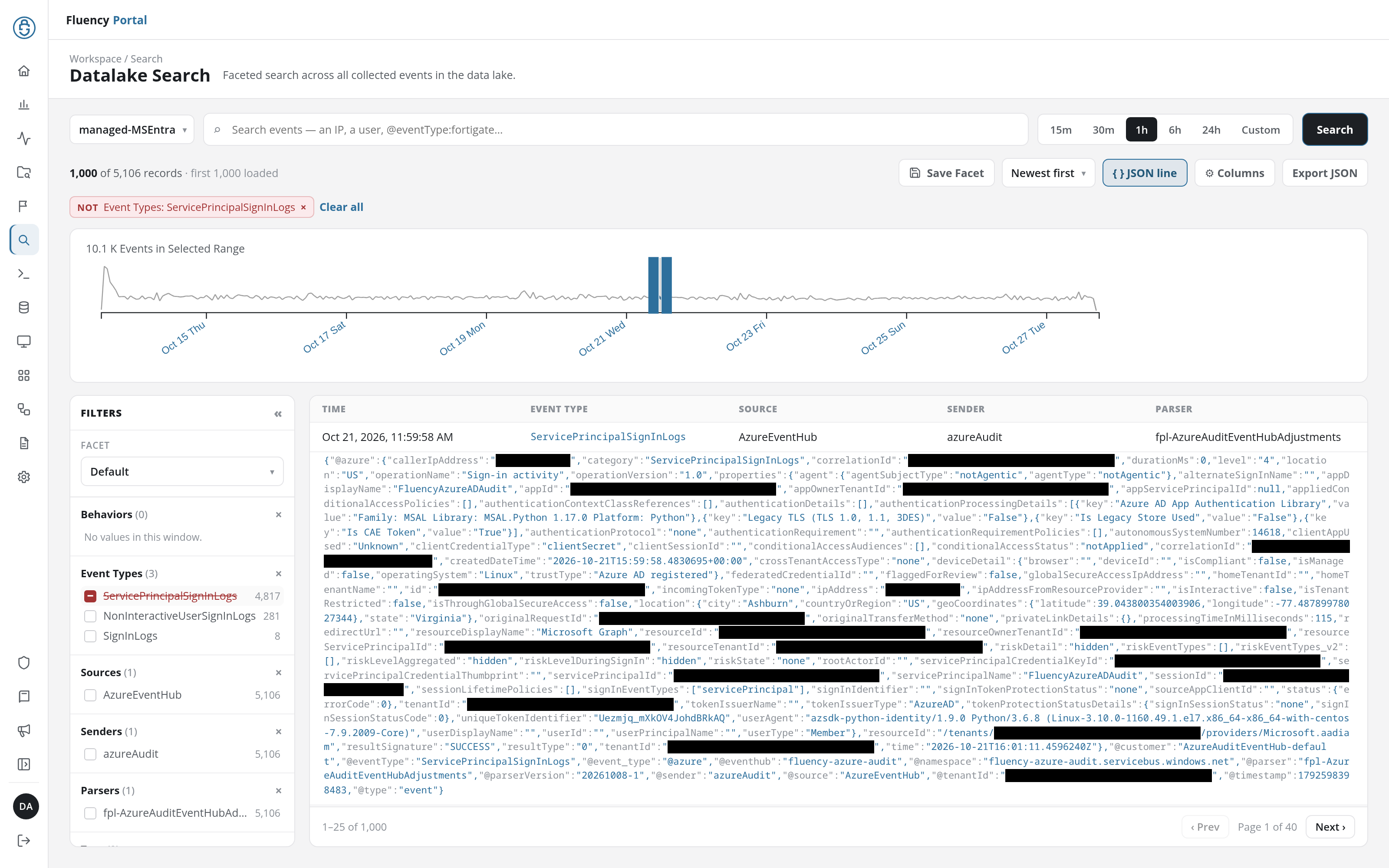
Each value's accessible label, read out by screen readers, states its current state and what the next click does: ServicePrincipalSignInLogs: not filtered. Click to include., then …: included. Click to exclude., then …: excluded. Click to clear filter.
Next to each value that appears in the attribute group there is a checkbox. This checkbox has three states:
- open: neutral state, this does not impact the search result.
- checked: focus, results that appear must include one of the checked values in the attributes.
- minus (excluded): results that appear must not include this value regardless of any other checked values.
Field Groups
- v2 interface
- Classic v1 interface
Each group is headed by its name and, in brackets, the number of distinct values found: Event Types (3). A group with nothing to count reads No values in this window. The × at the right of a group heading removes that group from the panel.
+ Add field at the bottom of the panel adds a group of your own. On Datalake Search it opens a small form: Display name, the group's heading, and Field value, the event field to count (@field.path), with an Add field button that is available once both are filled; on Cases Search and Notable Events it opens a Filter fields… list of the fields found in the results.
Each facet group's header carries three small round icon buttons: a plus, a minus, and a down arrow. The plus and minus buttons increase or decrease the number of listed values.
Relationship Between Attributes
Checked boxes between attribute types act like logical and statements, while checked boxes in the same attribute act as logical or statements.
Excluded values are removed from all results regardless of checked boxes elsewhere.
Running and Resetting the Facet
- v2 interface
- Classic v1 interface
Set the values you want, then press Search in the search bar to run the search with them.
The chips above the histogram list every filter that is set. The × on a chip removes that filter; Clear all beside the chips removes them all.
The « button in the panel's header (Collapse filters) folds the panel into a narrow strip labelled FILTERS, with a badge counting the active filters, giving the results the full width; » opens it again.
A small toolbar of icon buttons sits at the bottom of the facet sidebar. On the SIEM pages it holds three buttons: a red X, a pencil, and a magnifier. On the Data Lake → Search page a save (floppy disk) button is also present.
Search (magnifier). Clicking the magnifier button re-runs the search using the checked/excluded attributes in the facet.
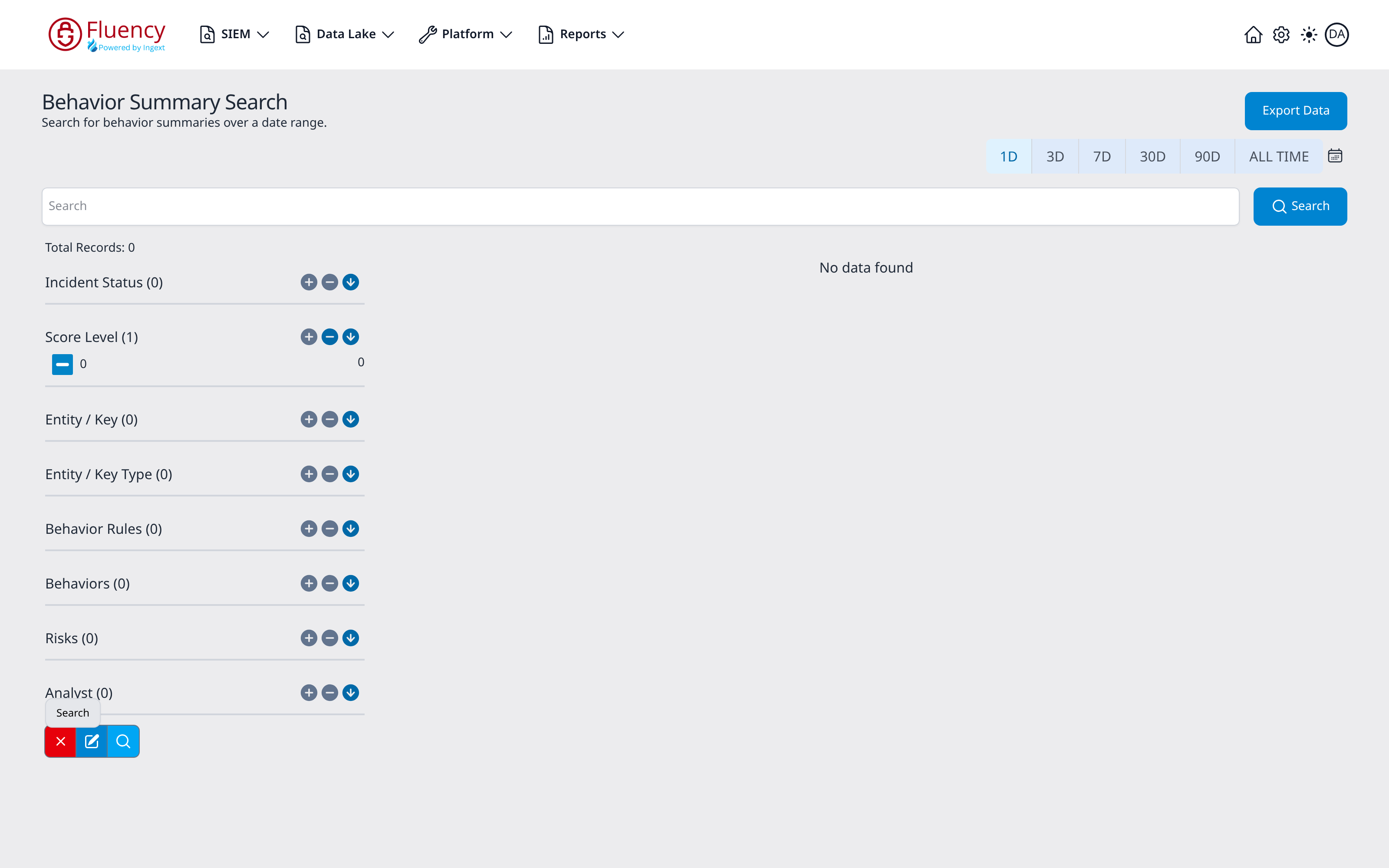
Reset Facet (red X). Pressing the red X button clears the current facet selections.
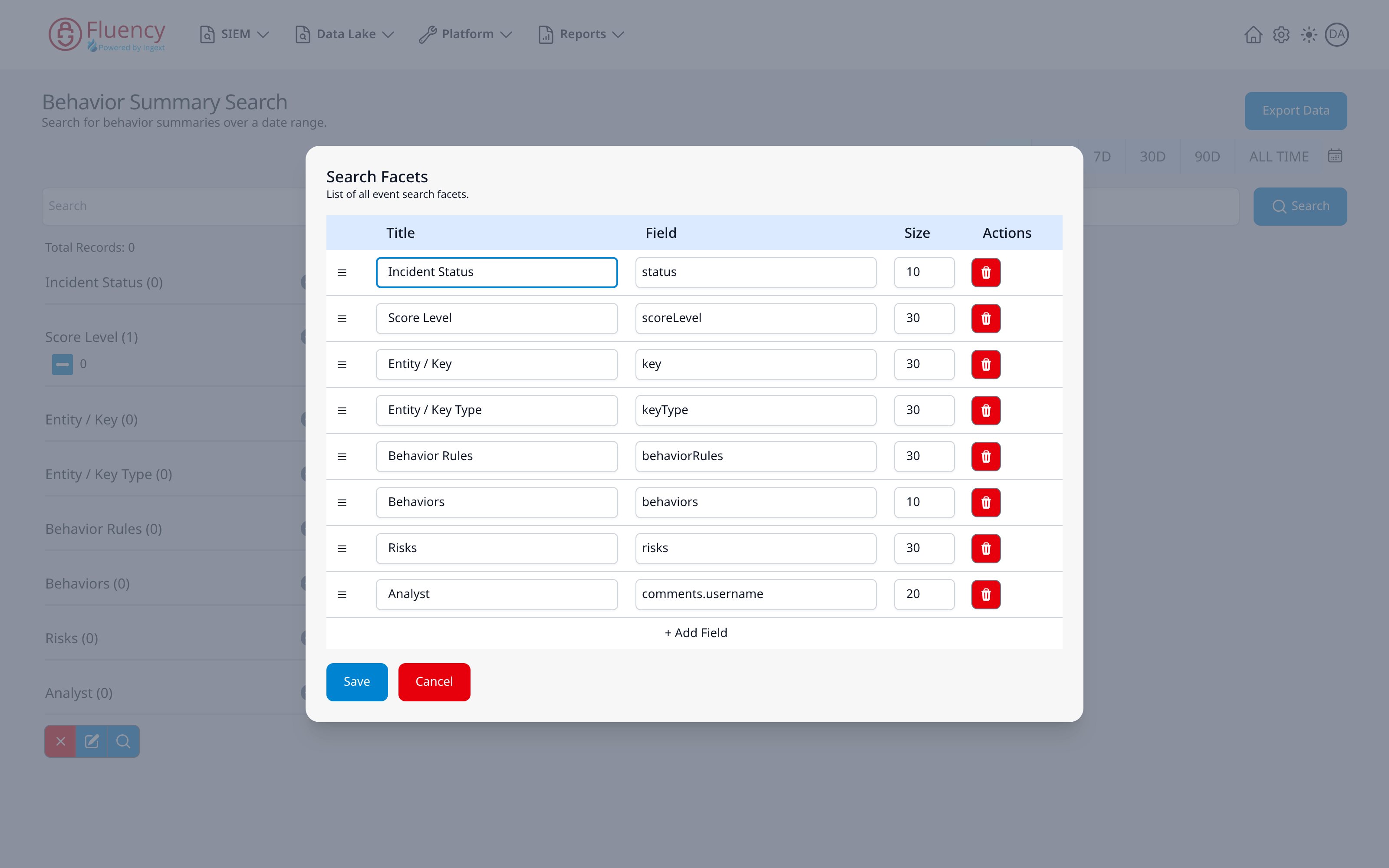
Editing the Facet Fields (pencil). Clicking the pencil button opens the Search Facets dialog, which controls the facets shown in the sidebar. The dialog is a table with Title, Field, and Size columns plus an Actions column:
- Title: the group label shown in the sidebar.
- Field: the event field the group aggregates, in dot notation.
- Size: the number of values the group returns.
Each row has a drag handle on the left for reordering and a red trash button under Actions to remove the facet. Click + Add Field to append a new facet row, then Save to apply the changes or Cancel to discard them.
Facet Configurations
For each page there is a default facet configuration. On the events search page, users can also create their own facet configurations and save them for later use.
Saving a Configuration
- v2 interface
- Classic v1 interface
On Datalake Search, Save Facet in the toolbar saves a search facet from the page. It opens the Save Search Preset dialog: give the facet a Name that no other facet has, and optionally a Description, then click Save Facet. The Filters panel's field groups, including any added with + Add field, are saved as a facet for the selected index, and the panel switches to it. Datalake Search describes the dialog.
Saved facets (each a set of fields, with a query and indexes) are offered by the Filters panel's facet selector and managed on Configuration → Search Facets.
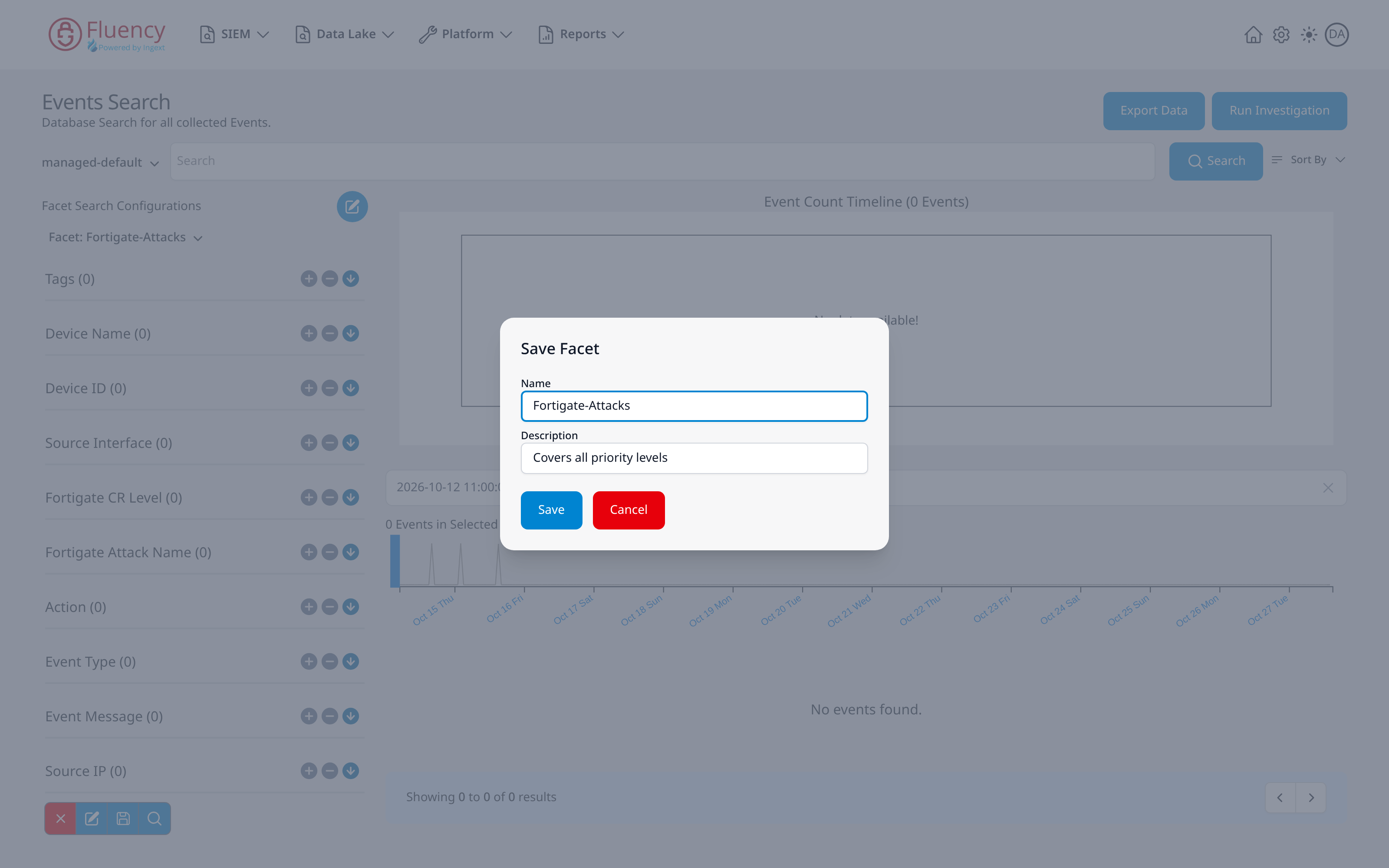
On the Data Lake → Search page, click the save (floppy disk) button in the facet toolbar to open the Save Facet dialog. Provide a short name and description, then click Save.
Switching Configurations
- v2 interface
- Classic v1 interface
The FACET drop-down at the top of the Filters panel on Datalake Search chooses the configuration the panel shows. Default shows Behaviors, Event Types, Sources, Senders, Parsers, and Tags; the other facets are named after the data they suit, such as Default-AWS_CloudWatch, Default-Fortigate, Default-Microsoft_Defender_Events, or GSuite, and bring their own groups. Datalake Search describes the selector.
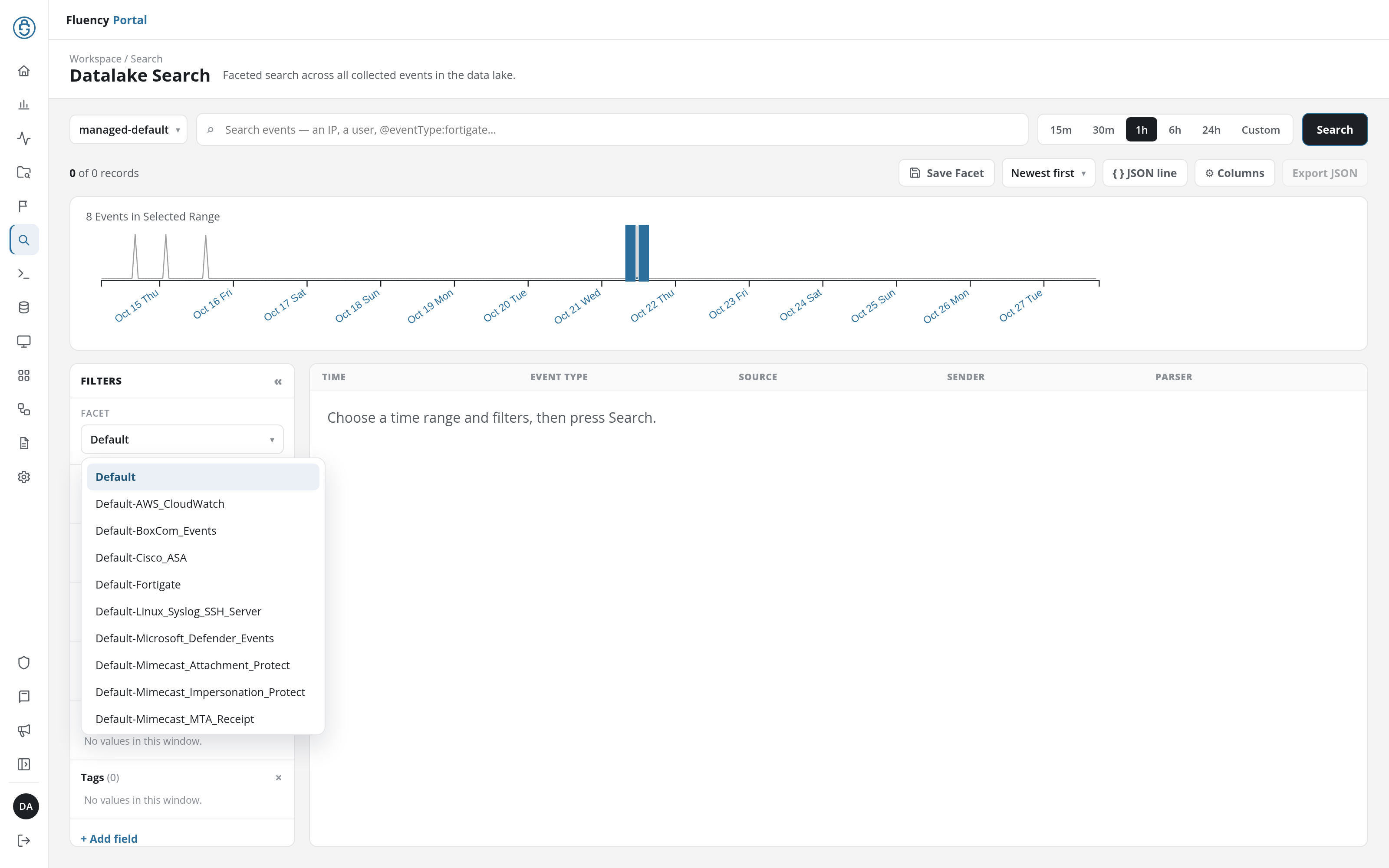
The drop-down offers the facets that fit the selected index: an index with facets of its own, such as managed-MSEntra, lists Default and those. Choosing a facet asks before it changes the search: a facet with a query of its own offers to replace the current query and filter selections with that query, and one without offers to clear them. Confirm to apply the change, or cancel to keep the current query; the panel shows the chosen facet's groups either way.
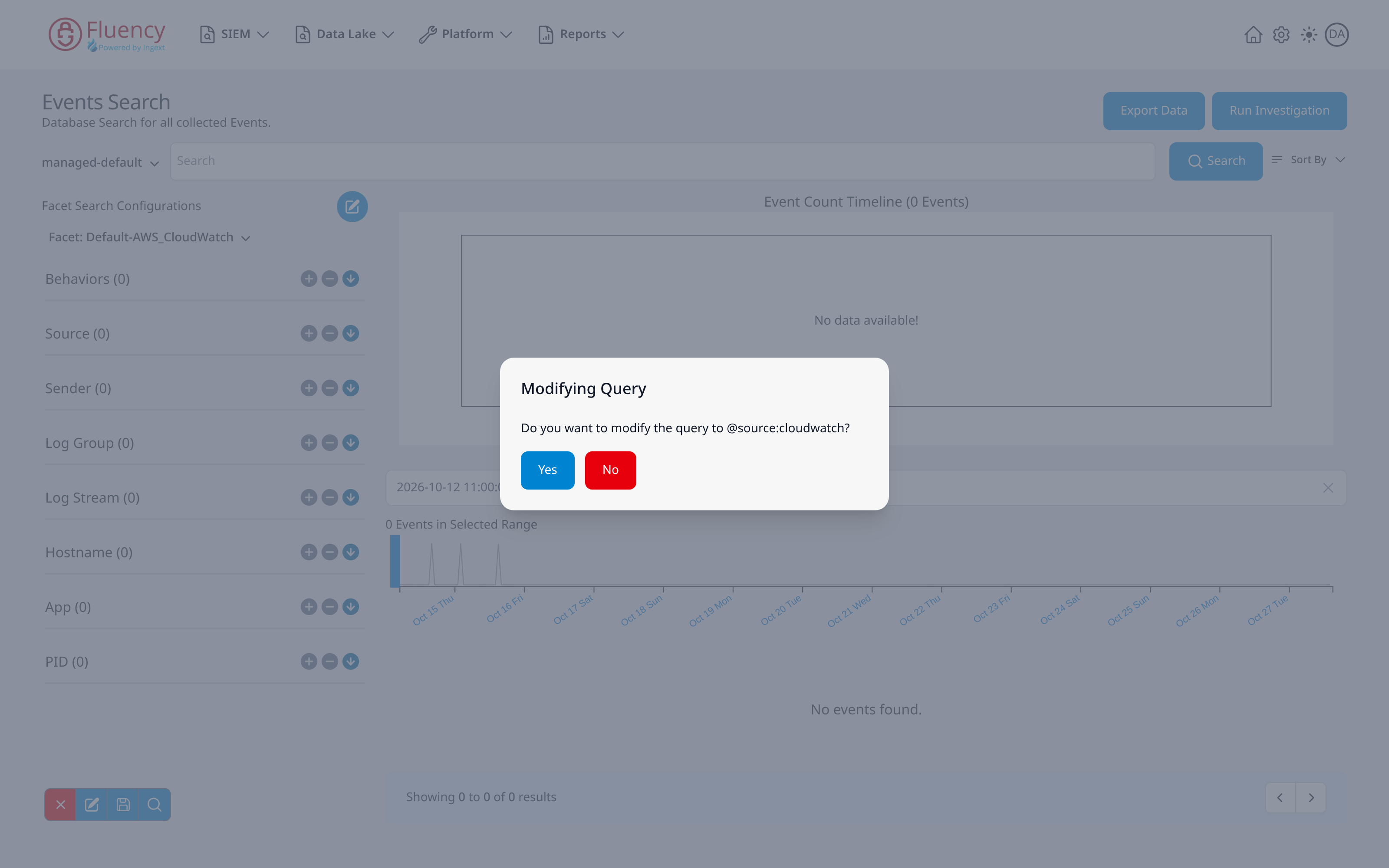
The Facet: selector at the top of the facet panel on the Search page shows which configuration is applied. Click it to switch among the saved configurations that fit the selected index: a configuration can be tied to particular indexes (the Indexes column of the facet library). An index with configurations of its own lists just those, such as Default-AzureAD_SignIn for managed-AzureAudit; managed-default lists the general Default plus a per-source default for each data source not tied to an index (Default-AWS_CloudWatch, Default-O365_Exchange, Default-Windows_AD_Events, and so on). Data Lake → Search lists them in full.
Selecting Default applies it directly. Selecting any other configuration switches the panel to that configuration's facet groups and opens a Modifying Query confirmation offering to rewrite the search query to match that source: for Default-AWS_CloudWatch it asks whether to modify the query to @source:cloudwatch. Click Yes to replace the query with the suggested filter, or No to keep the current query.
The Facet Library
- v2 interface
- Classic v1 interface
The library of saved facet definitions is its own page, Configuration → Search Facets: a table of profiles with GROUP, NAME, DESCRIPTION, INDEXES, and ACTIONS columns, each row offering Edit, Download, and Delete, and Import and Create Facet buttons in the header.
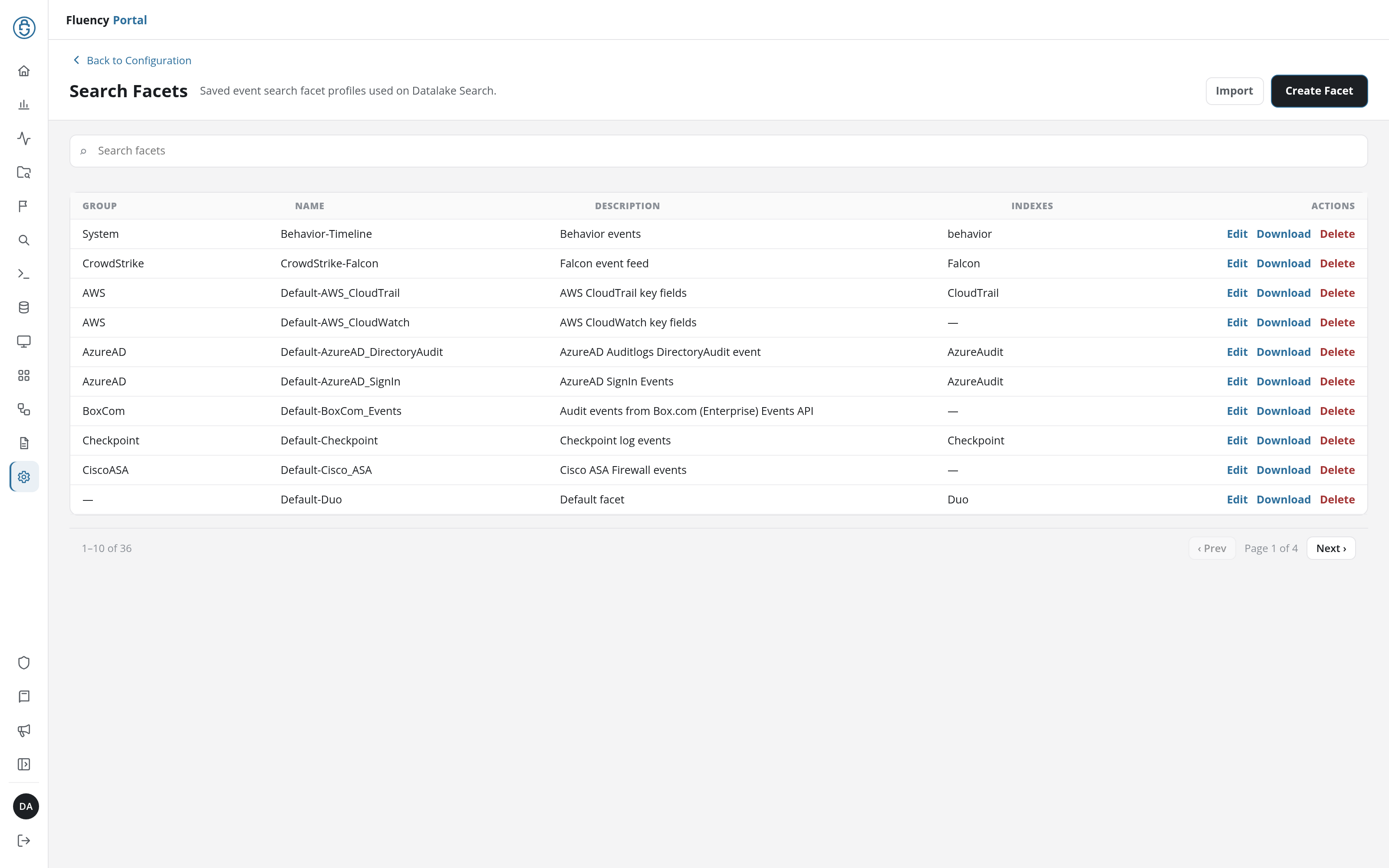
Create Facet and Edit open the same form: Name, Description, and Indexes under Details; an optional Query (such as @parser:aws); and under Fields one numbered row per facet, each with a drag handle for reordering, a Title (the group's heading on Datalake Search), a Field (the event field it counts), and Delete. Import loads profiles from a JSON file in the format Download produces; see Import and Download and Delete.
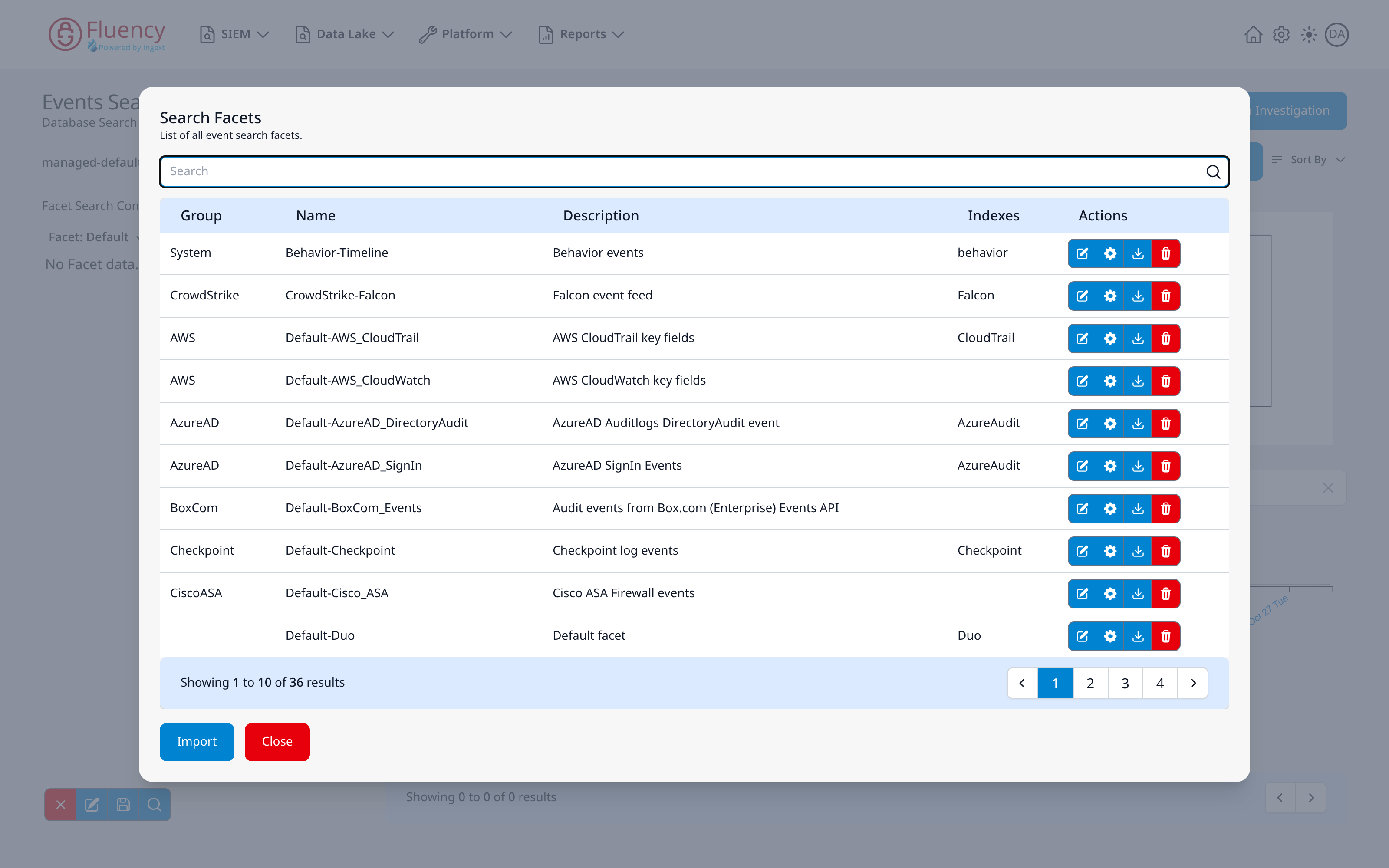
The round blue pencil button beside the Facet Search Configurations heading on the Search page opens the library of saved facet definitions: a Search Facets dialog with Group, Name, Description, Indexes, and Actions columns, per-row edit, settings, download, and delete buttons, and an Import button for bringing in a facet definition.
Exporting Results
- v2 interface
- Classic v1 interface
To export the loaded results, use Export JSON at the right end of the toolbar on Datalake Search (not the Filters panel). It downloads them as newline-delimited JSON (an .ndjson file, one event per line), and is disabled until a search returns records.
To export the current result set, use the Export Data button in the page header of the Events Search page (not the facet toolbar). If the search returned no results, nothing is exported and a red Export error toast appears reading No events data to download; dismiss it with its x.