Getting Regex from ChatGPT
Setting the Prompt
I will be providing log messages.

When I provide a prompt with:
Provide Fpl Regex for: "message"

Please provide a JSON response with the following format:

```json
{
    name: "<Log Type Name>",
    pattern: `<regex pattern>`
}
```
Include a short description of the pattern, less than 400 words.

Reply with "I am ready"
Providing the above prompt to ChatGPT will get smaller responses from ChatGPT.
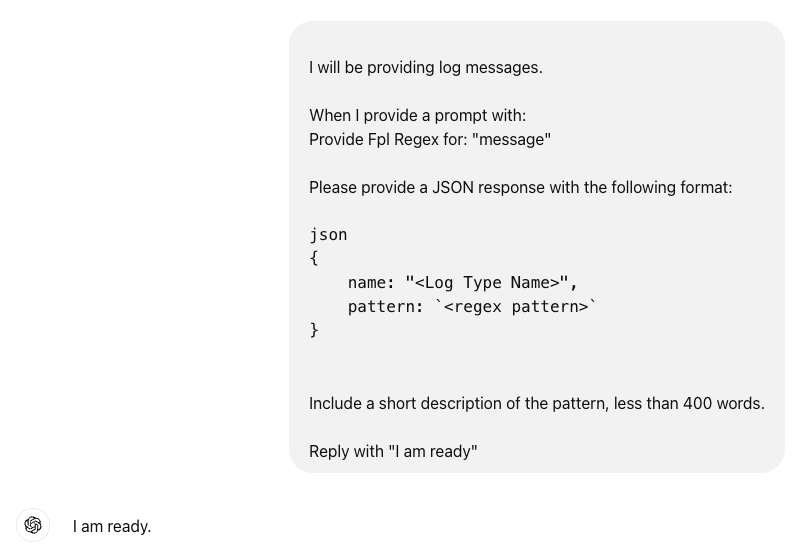
It is important to recognize that ChatGPT will sometimes stray from a prompt. Just reissue the prompt to get it back on track. Also, ChatGPT can start using other RegEx patters, like double quotes and non-labeled regex. In this case correct the mistake and provide the correct response back to ChatGPT in the prompt.
Providing a Sample
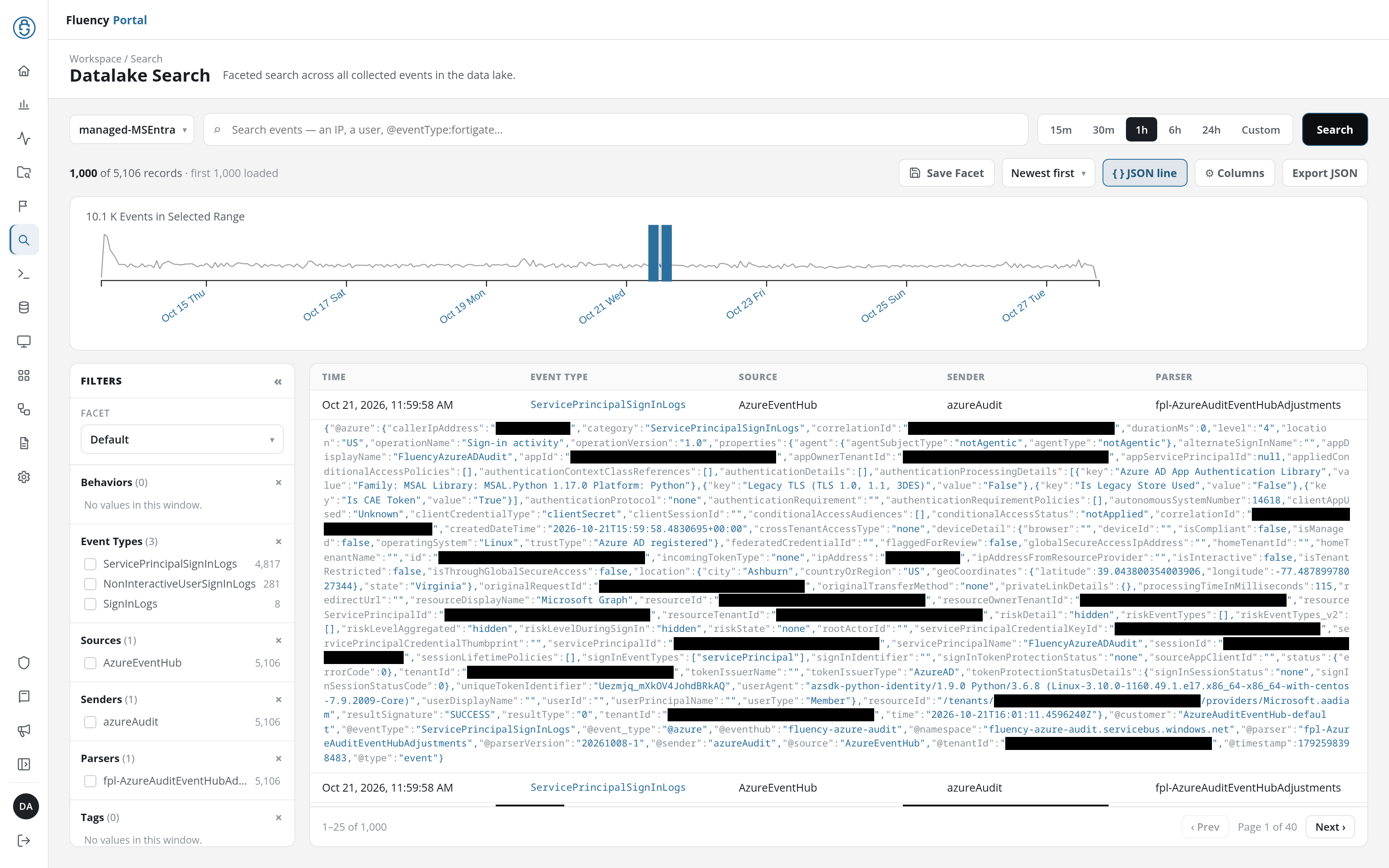
Using a sample is the best way to make sure the signature is correct. If you used the parser framework, you will tag the data that is not parsed with a label in the format Failed <parser_name> Parse Searching this in Datalake Search (v1: Events Search) returns a listing of all messages that still need to be parsed.
Searching
- v2 interface
- Classic v1 interface
Use Datalake Search to get a list of unparsed messages: search the index the parser writes to for the tag (in this case "Failed Daemon Parse"). With JSON line on, each result row is followed by the event's complete JSON, @message included. You can just Cut&Paste the message into the ChatGPT prompt.
Note: clicking a row opens the event in a detail panel, whose RAW JSON section holds the complete event, with a Copy JSON button.
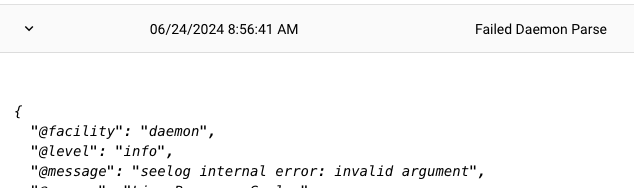
Use Events Search to get a list of unparsed messages.

Unparsed messages will show up with the default and then the message. The Tag will be visible (in this case "Failed Daemon Parse"). You can just Cut&Paste this into the ChatGPT prompt.
Note: the message can also be displayed in JSON format by opening it up and changing the view to JSON.
Using the prompt
In this case the prompt is:
Provide Fpl Regex for: "seelog internal error: invalid argument"
And ChatGPT responded with:
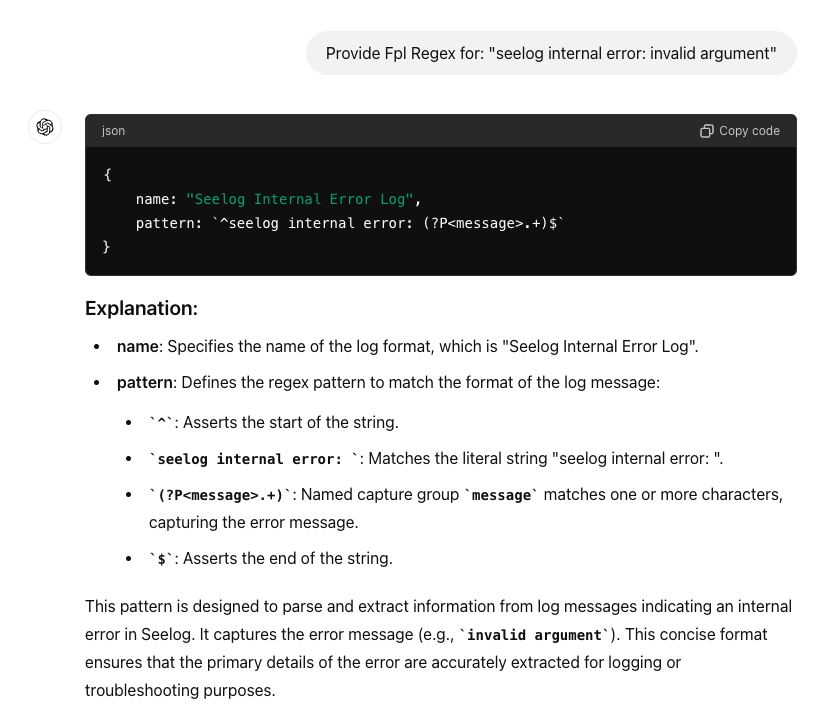
The copy code section is what you want. The rest is there in case you need to understand the variable groupings if you need to debug. Click copy code,
{
    name: "Seelog Internal Error Log",
    pattern: `^seelog internal error: (?P<message>.+)$`
}
Now you can insert this into the code as part of the patterns array. Order matters, place common regex in the front, and uncommon in the of the array. You can adjust this latter by using the facet to see the actual parser distribution amounts.
Testing
- v2 interface
- Classic v1 interface
To test you are going to the processor editor: click the processor's card on Configuration → Processors.
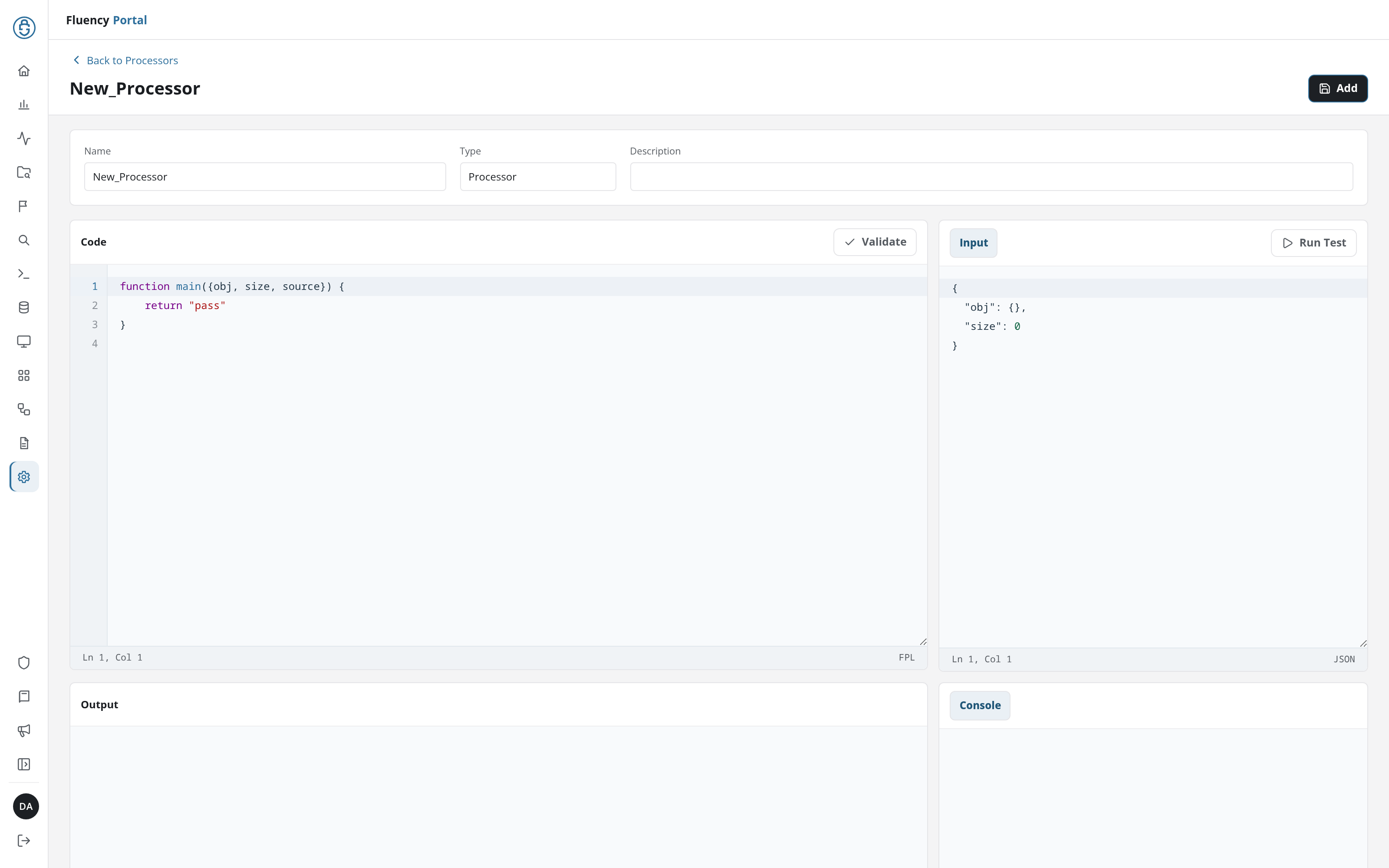
To test you are going to the Code Editor page.
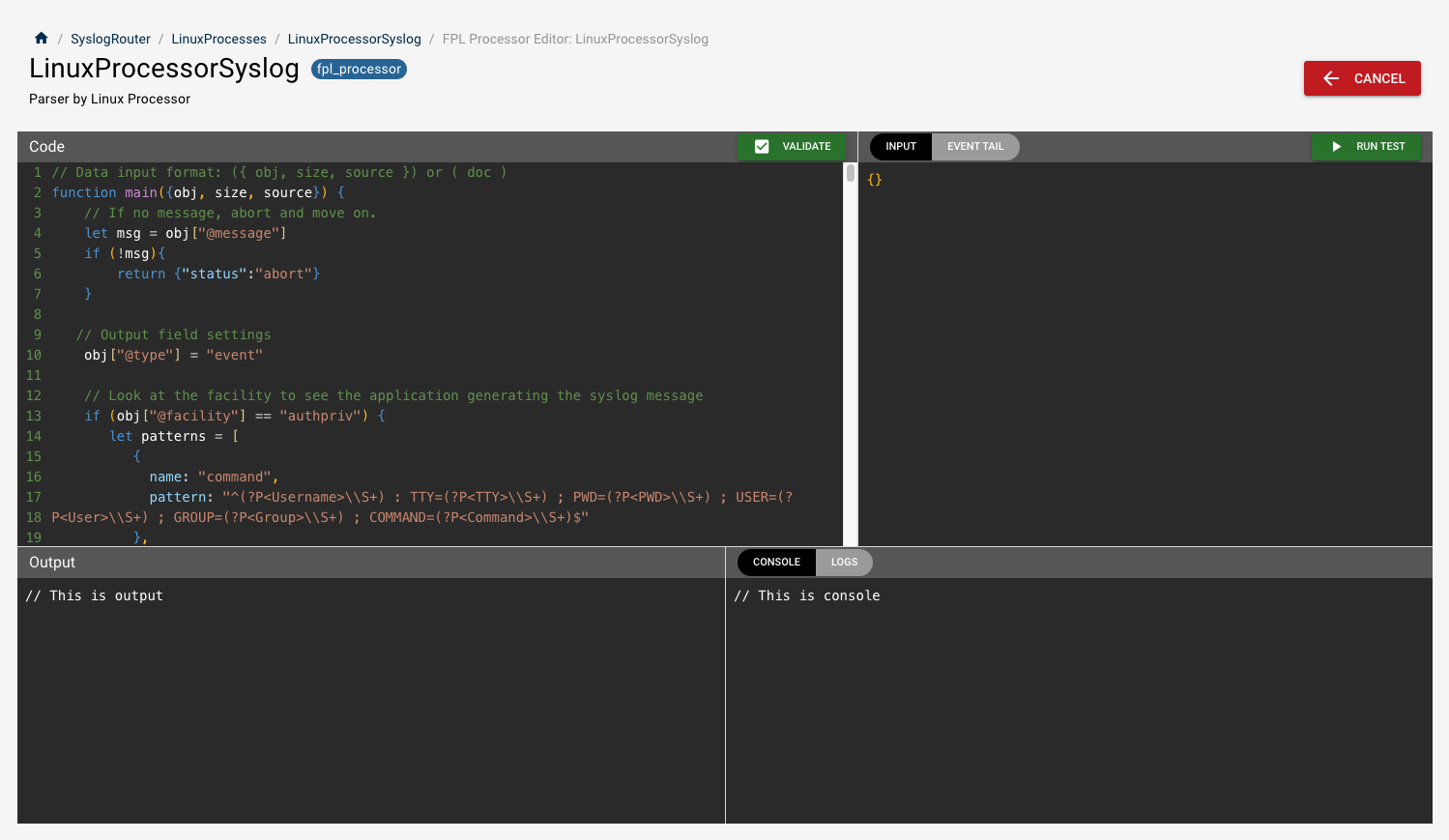
As a reminder (going clockwise from the top left)
- Editor: This is the processor code
- Input: This is the incoming data to the processor when you are testing. You are going to use this. This input is used when you click the "Run Test" button.
- Output: This is the outgoing result of the code when you click the "Run Test" button.
- Console: This is the standard out. This data is not part of the pipe, but instead part of the system output.
Place a frame into the Input
You need to place the message in the manner it appears from the data source. A syslog message when received will have a structure like the following.
{
  "obj": {
    "@facility": "daemon",
    "@level": "info",
    "@message": "Replace this",
    "@parser": "YourParserName",
    "@sender": "ip-sample",
    "@source": "ip-sample",
    "@tags": [],
    "@timestamp": 1719234357000,
    "@type": "event"
  },
  "props": {},
  "size": 0,
  "source": ""
}
Cut and Past this into the Input window.
Test the response from ChatGPT
You can now use this JSON structure and put the message into the format. Make sure the @faility matches.
- v2 interface
- Classic v1 interface
Add the pattern to the patterns array in the Code pane and the frame to Input. Run Test is at the top right of the Input pane; the result fills Output, below the code, and the console output fills Console, beside it.
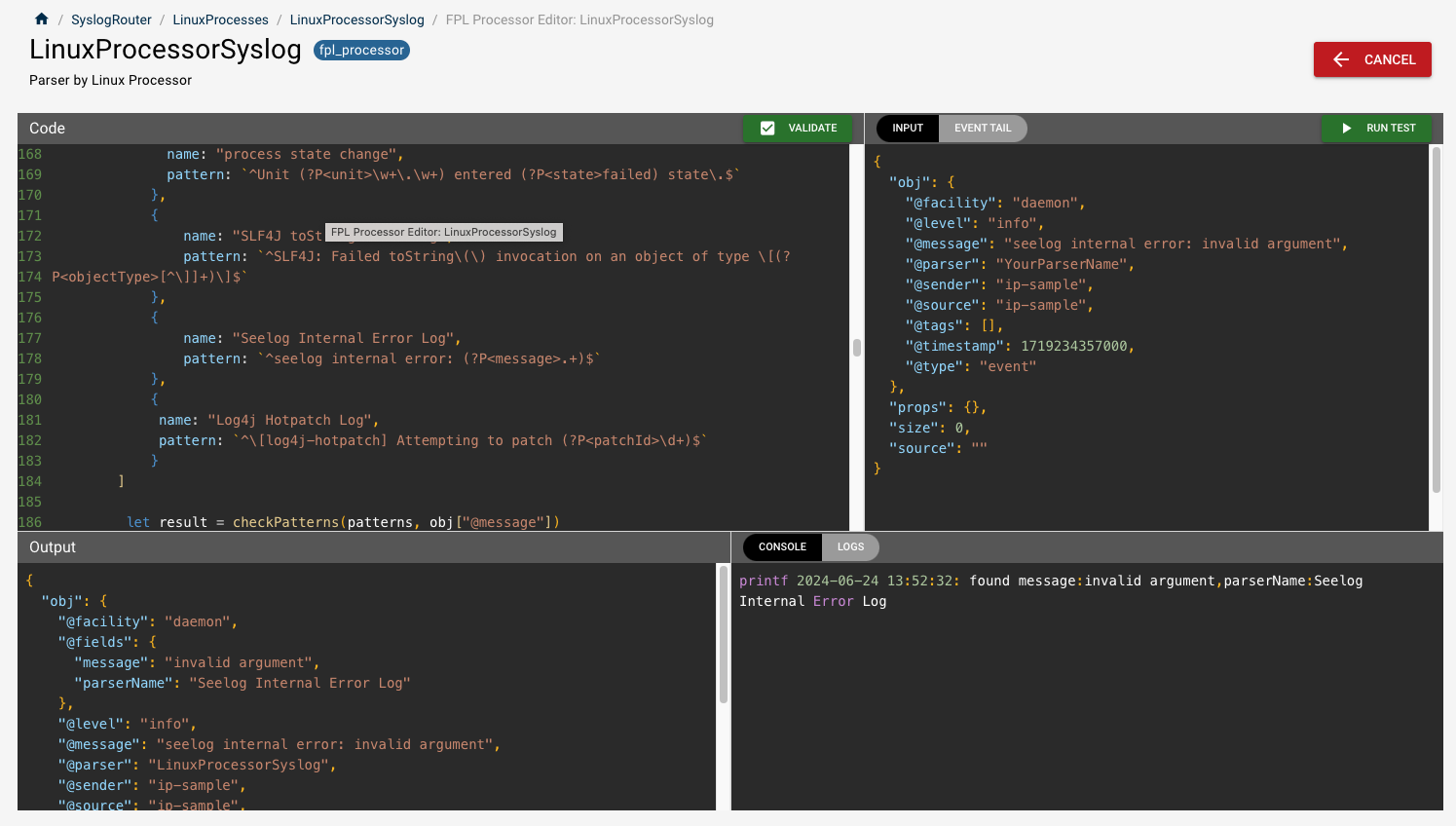
Hit "Run Test", and the Output shows the new Event message, while the Console shows you that the pattern was found.
Refining the Rule
This is where human intelligence is better. You have the rule but it is for a specific product. This should be a variable. Let's be lazy and tell CatGPT to correct the issue.
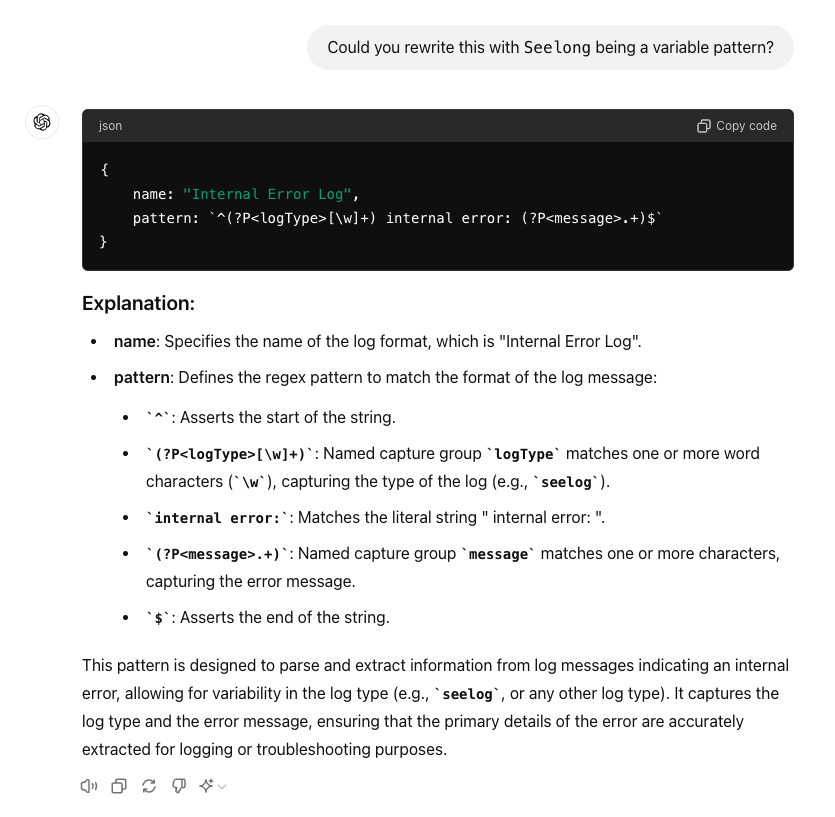
You can replace the JSON snippet with the previous and rerun the test.
- v2 interface
- Classic v1 interface
Click Run Test again: Output should now carry a logType field of seelog, and Console report the parser name Internal Error Log.
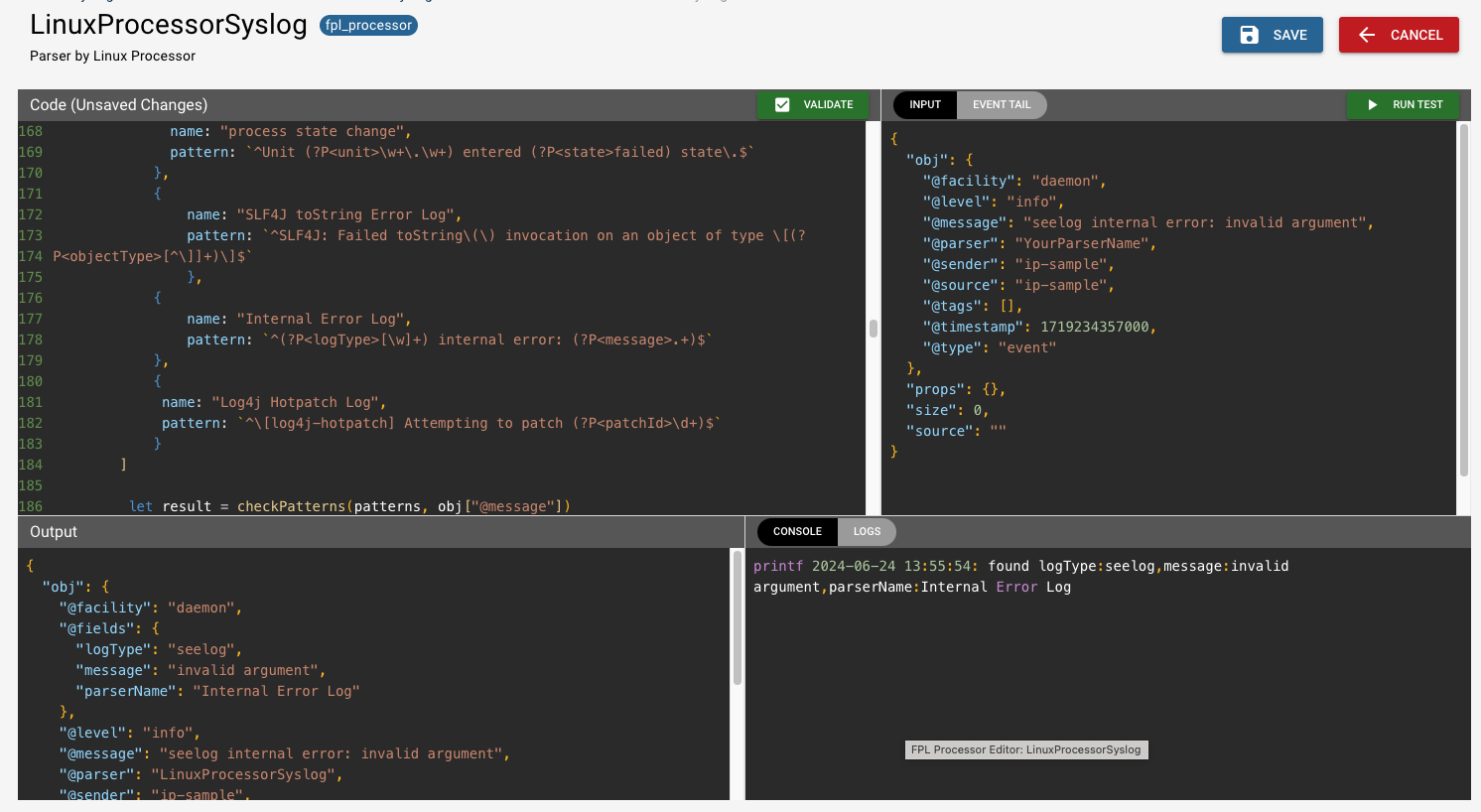
It worked. The output now shows that log type as a variable.
More
This was a simple regex that was easy for ChatGPT. But besides not seeing the variable name, ChatGPT sometimes make regex pattern mistakes. That is why you need to test.
Also, it misses when there are variables. You can address this too by asking ChatGPT if there are any other commands and variations. The caveat is you still need a sample to test it, as ChatGPT can often make up variations that do not exist.